
Progress clocks
Shared segmented goals, permissions, pinned indicators and MapBuilder controls.
Documentation · Português (Brasil) · Campaign management
Progress clocks track tasks, threats, countdowns and other campaign goals with filled segments. They belong to the campaign and work with every game system. The table and the GM's campaign manager edit the same saved records.
Create and configure
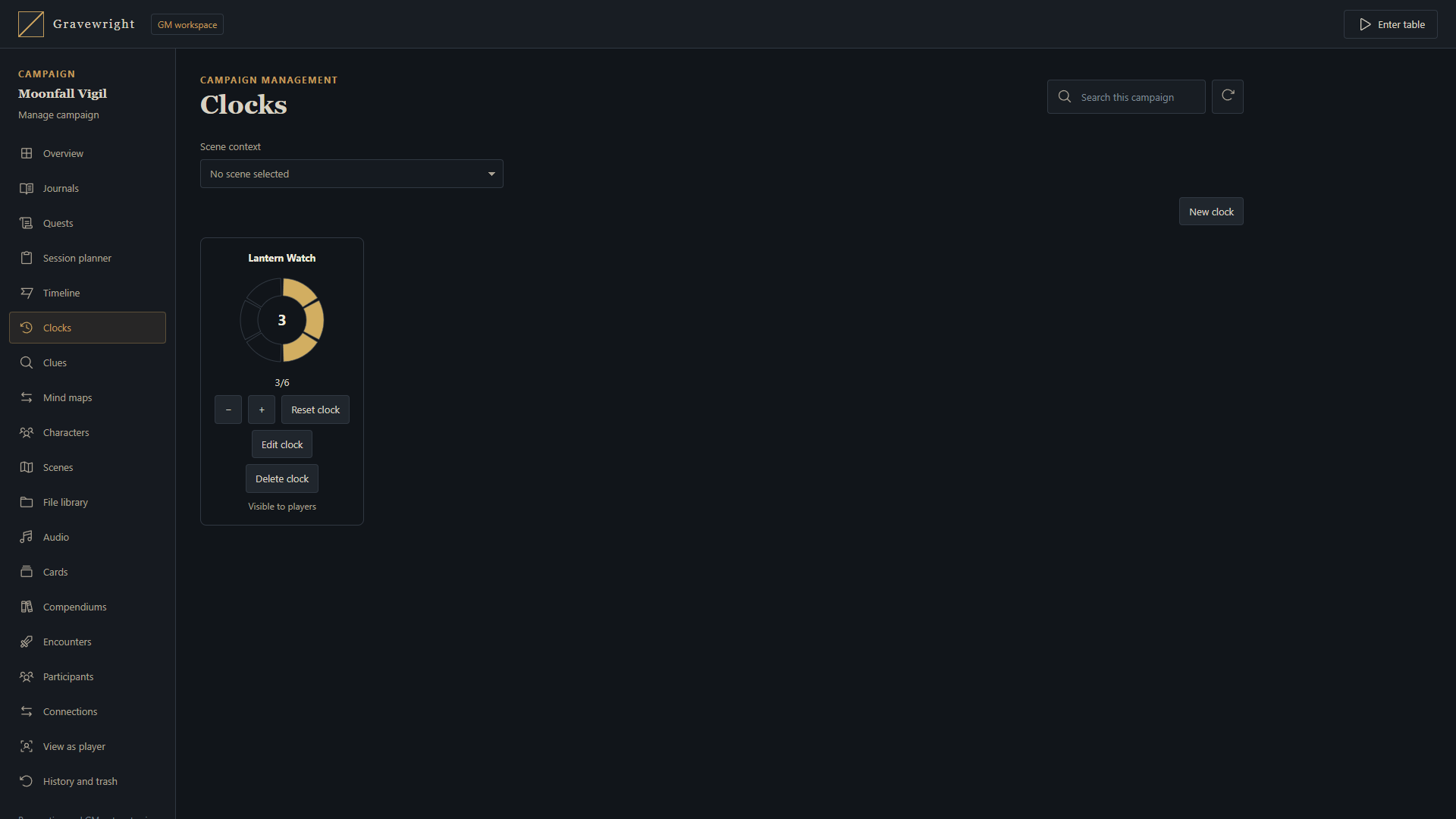
On the table, open Clocks from its icon in the lower dock. Before entering play, open Manage campaign and select Clocks. A campaign GM can create a clock, choose its name and color, and set its current progress. Clock description stores optional authored text up to 4,000 characters. Only a GM edits it; readers of a public clock can read its description.
Choose a preset with 4, 6, 8, 10 or 12 segments, or Custom for an integer between 2 and 24. Progress stays between zero and the number of segments. A campaign can contain up to 128 clocks.
Choose the clock's scope:
| Scope | Where it appears |
|---|---|
| Campaign | In that campaign across scenes |
| Current scene | Only when viewing the associated scene |
Selecting a scene context in the campaign manager prepares that scene's clocks. It preserves the table's broadcast, each participant's private scene selection and table presence. Entering the tabletop remains a separate action. Deleting a scene also removes clocks associated with that scene.
Audience and controls
| Setting or role | Behavior |
|---|---|
| GM only | The server sends the clock only to campaign GMs |
| Players | Participants viewing its scope can see the clock |
| Players can advance this clock | Players can advance or reduce progress on that public clock |
| GM | Can configure, advance, reset and delete clocks |
| Streamer | Can view permitted clocks with read-only controls |
| Pinned | Displays the permitted clock in the table's pinned-clock area |
Player editing changes progress. Configuration, visibility, scene scope, resetting and deletion remain GM operations. Hiding a control is a presentation choice; the server checks the participant's current membership and permission on every request. Private clocks and clocks belonging to another viewed scene are filtered before delivery.
When you can edit a clock, left-click its face to advance one segment or right-click to reduce one. These controls work in the full clock list, campaign manager and pinned table display. Focus the face and use Right/Up to advance or Left/Down to reduce. The full clock window and campaign manager also provide + and − buttons; pinned clocks show only the name and clock face. Progress stays within its segment bounds, and a pending change finishes before another face action is accepted. The server checks the same saved revision and permissions used by the other progress controls.
Use Reset to return to zero or the GM editor to revise the configuration. Closing the clock window leaves saved clocks intact. Reloading restores saved progress. Pinned clocks use the same authorized records as the full list.
Double-click the clock's name, or focus it and press Enter or Space. For a GM, this opens the native clock editor, including its description. Players and streamers see a simple read-only description modal. Opening rechecks current access; a private clock's description is never delivered to those readers. Authored text keeps its wording and is displayed as text, including line breaks.
Arrange pinned clocks
Clock cards and unfilled segments have transparent backgrounds. On the table, each pinned clock can be moved independently: drag its title to the desired position. You can also focus the title and move it with the arrow keys, one pixel at a time, or ten pixels while holding Shift. Escape cancels an active drag. Positions stay within the visible browser area when its size changes.
Positions are saved locally for each account, campaign and indicator in that browser. Reloading restores them; another person's layout stays unchanged. Wide and narrow screens keep separate positions, restoring each layout when you resize back. Moving a clock sends no position command or broadcast and changes no campaign, scene or progress data. Even a read-only participant can arrange the clocks they are allowed to see. Pinning/visibility remain shared GM configuration, and progress changes still follow the permissions above.
Synchronization and integration
The tabletop receives committed clock changes through its existing realtime connection. Campaign management uses HTTP, refreshing on focus and through its normal periodic refresh. Refresh campaign retrieves current state immediately.
Concurrent edits use the saved version. If a clock changes while an operation is pending, refresh its current state and review the action. Each logical write uses a new request UUID; retrying that exact operation reuses its UUID so it is applied once.
Browser integrations use the clocks domain of the
public API: state, create, update, advance, reset and delete.
Changes to an existing clock provide its id and integer version; advancing
also provides delta. Create and update accept the native fields name, description, segments,
value, color, visibility, playersCanEdit, pinned and scopeSceneId.
Visibility is gm or players; scopeSceneId: null selects campaign scope.
The request's sceneId supplies the current viewing context. Returned clocks
expose their saved scope as clock.sceneId.
Integrations retain the same campaign, scene and role checks as the native UI.
description defaults to "" and accepts only a string of at most 4,000
characters. Omitting it during an update preserves the existing text.
The clock faces are native SVG artwork. No external VTT module or game-system package is required.
MapBuilder mechanisms
The Smart Object Control clock node connects a mechanism's event to an advance, reduce, set or reset operation. It accepts a configured amount or a connected numeric input. Changes use the same saved clock and update permitted table windows and pinned displays after commit.
A GM-authored node authorizes its specific clock operation when a participant interacts with that mechanism. This includes private clocks and clocks whose direct player editing is disabled. It does not grant general clock access or expose private names and values. The runtime requires an active campaign GM. Clock scope still restricts which scene may execute the binding.
See Control progress clocks in MapBuilder for connections, amount limits and safe simulation/rehearsal workflows.
Backups and upgrading
Campaign exports, snapshots, restores and clones preserve clock configuration,
progress and campaign or scene scope. Clone options can omit all clocks with
clocks: false. Omitting scenes with scenes: false also omits scene-scoped
clocks while preserving campaign clocks when clocks are included.
This feature adds the gravewright_table migration 0003_progress_clock;
descriptions add 0006_clock_description. Older campaign archives without that
field import with an empty description. Copies and snapshots preserve its exact
authored text, including text that happens to contain resource UUIDs.
Apply pending migrations before restarting an existing installation:
uv run --locked python manage.py migrate