How to use AI to plan a Smart Object
Turn an interaction idea into a verified Map Builder node plan, then simulate and playtest it.
Replace bracketed values before sending the prompt. Give the assistant the relevant public files from the exact target release; use synthetic examples and keep credentials, private campaigns and proprietary material out of its context.
What you will build
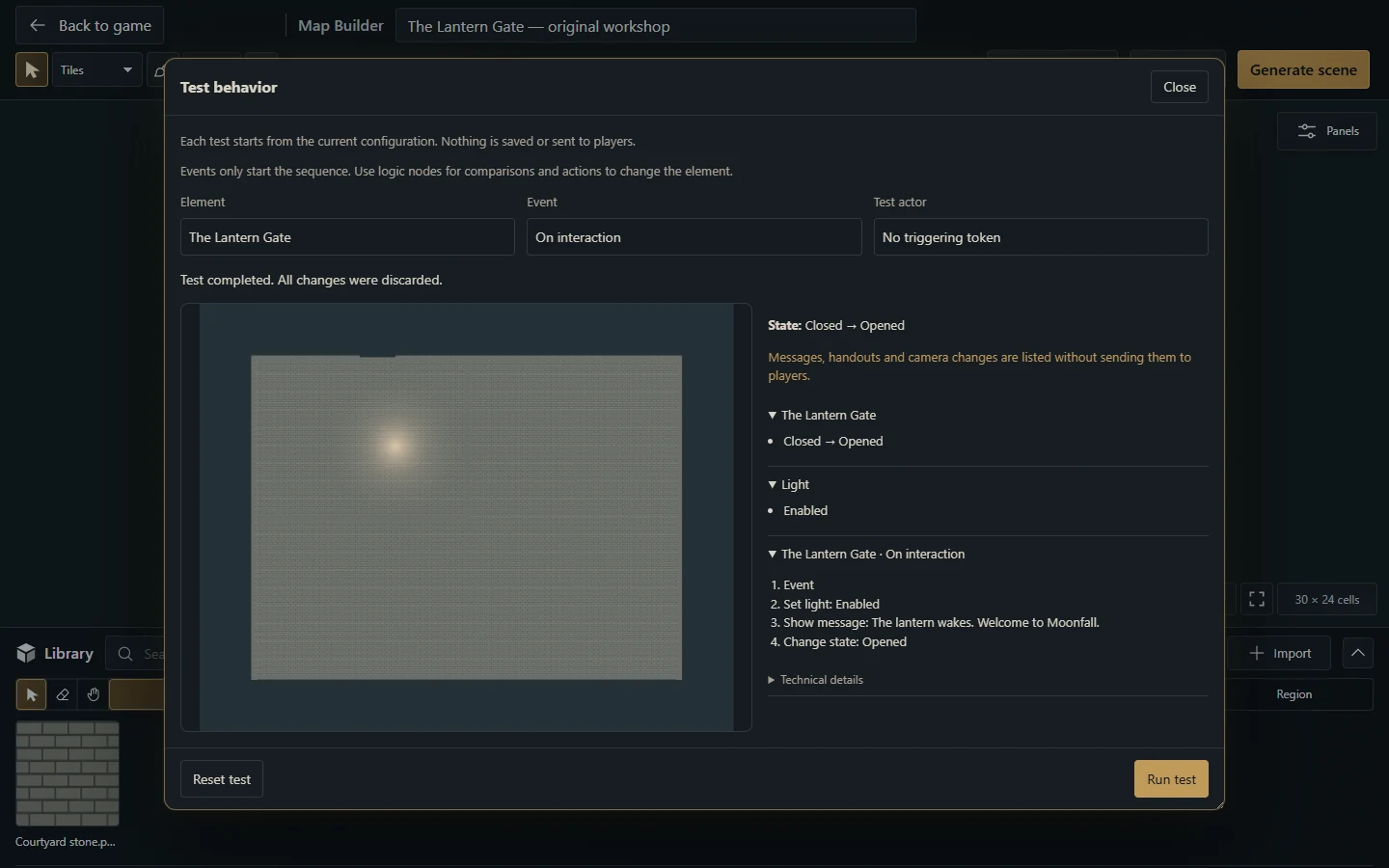
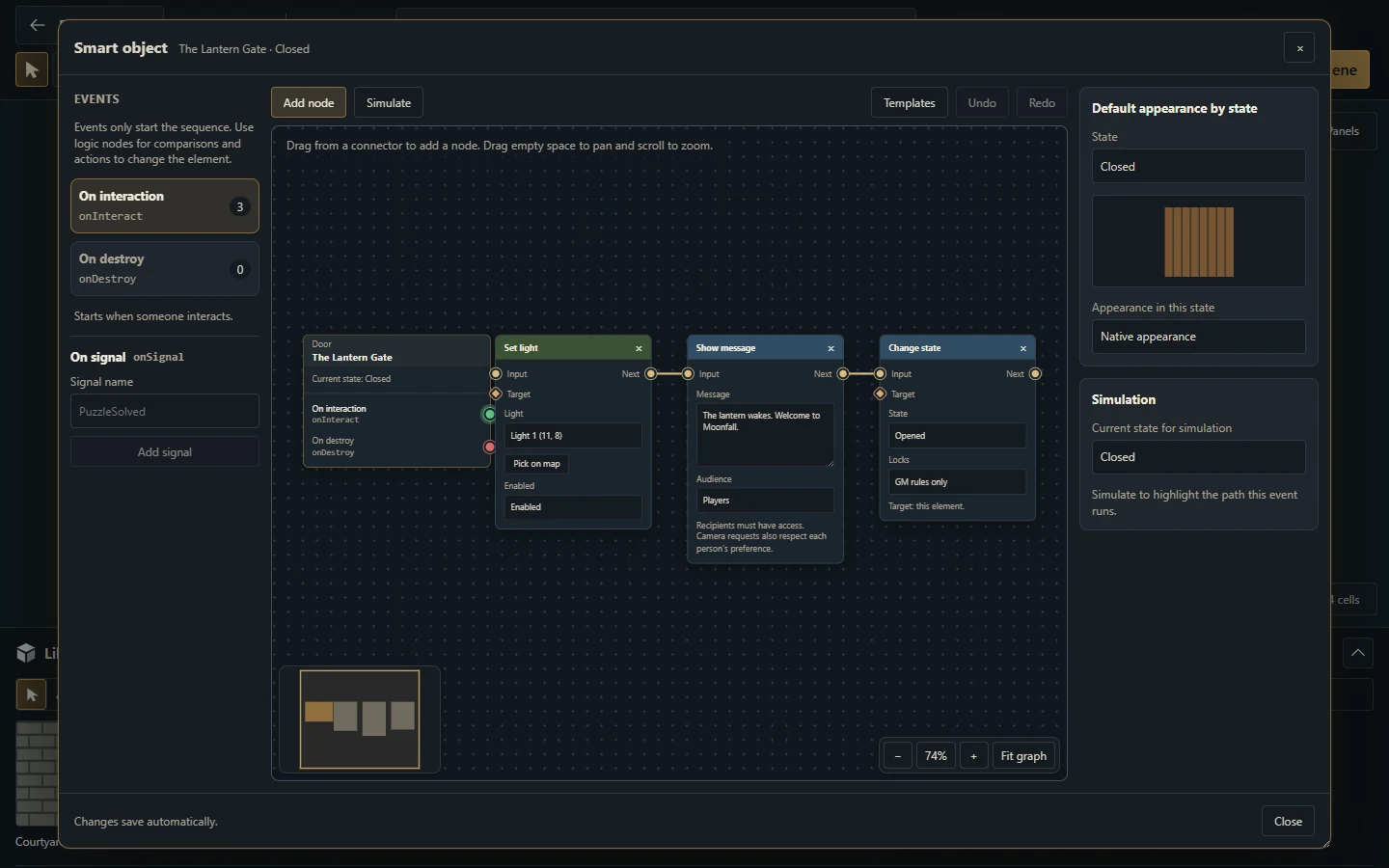
Design a door that lights a nearby lamp, shows a short message and changes to an Opened state when interacted with. Keep the first example local to one object.
Context to give the assistant
docs/en/map-builder.md: supported nodes, connections, targets, simulation and playtest.
The current validator and tests for Map Builder blueprints in the target release.
A plain-language list of the map’s states, objects and the authorized effect of each interaction.
Step by step
Describe the starting state, event, actions, audience and desired final state.
Ask the assistant for a node-by-node plan before requesting serialized data.
Create the nodes in the real editor, select targets with its controls and simulate the path.
Playtest the scene, reset/commit intentionally, and only then generate/update the GM scene. Activate for players separately.
Copy and adapt this prompt
Repository: [local checkout or public repository]
Target host release: [installed/requested version; preserve it]
Task scope and authorization: [what may be changed/published]

Plan a Map Builder Smart Object for a synthetic Lantern Gate on the requested release.
On interaction, enable a nearby native light, show an original short message to the intended audience and change the door state to Opened.
Inspect current documentation/validators before naming node types, ports or fields. Verify the generic interact/destroy and presence:enter/presence:exit events against this release; do not reuse deprecated state-specific event names.
Give the exact editor actions, targets and expected simulation path. Explain state guards if repeated interactions should be prevented.
Do not invent a downloadable blueprint JSON format or call private scene commands from the browser. Only produce importable JSON if the target release explicitly documents and validates that format.
Explain how to test both permitted and denied interaction and distinguish project editing, generated scene, playtest state and player activation.

Inspect the actual files and supported APIs before proposing code. Do not invent commands, fields, endpoints or package capabilities.
Use disposable test data and installation-local tools/caches. Explain any unsupported requirement and validate the result with the project’s real tools.
Deliver concrete files or editor steps, the checks performed and any unresolved limits.
How to validate
Run Simulate and confirm the selected event follows the intended connections.
Start Playtest, interact, observe the light/message/state, and reset; check the chosen persistence behavior.
Check GM/player interaction rules, missing targets and repeated actions.
Generate/update the scene privately; activate it only after verifying the intended result.
Ready when
The real node graph produces the intended interaction in playtest and its publication/persistence behavior is understood.
Continue with the module reference, public API and testing guide.
More screenshots for this guide (1)