
How to create and activate an installation language package
Package six original interface strings, install globally, choose a personal locale and verify English fallback.
What this package actually changes
Create a declarative, installation-wide language package for Gravewright 0.3.0. This original demonstration translates exactly six interface keys into Portuguese and Spanish. It is deliberately partial, so most host text remains English. It does not translate authored character names, chat, journals, PDFs or exact legal notices. It is not a complete release of the official Translator.
Use a disposable installation. Activating this language package selects it globally and disables the previously enabled global package; do not replace an operator’s active translation just to test six strings. Individual accounts still choose their own interface language.
1. Start with the complete existing sources
language/
  manifest.json
  main.mjs
  locales/pt-BR.json
  locales/es.json
  LICENSE.txt
  README.md
Create a folder named language and save the exact files below as UTF-8. Preserve the existing GPL license and README from the source ZIP. There are no npm dependencies or Python files in this browser package.
manifest.json
{
  "id": "example.language-demo",
  "name": "Example language demo",
  "version": "1.0.0",
  "sdk": {
    "requires": ">=1.0.0 <2.0.0",
    "tested": "1.0.0"
  },
  "description": "Partial original interface catalogs for Portuguese and Spanish.",
  "author": "Gravewright documentation examples",
  "license": "GPL-3.0-only",
  "entry": "main.mjs",
  "locales": {
    "pt-BR": {
      "name": "Português (Brasil)",
      "path": "locales/pt-BR.json"
    },
    "es": {
      "name": "Español",
      "path": "locales/es.json"
    }
  }
}
main.mjs
export default { start() {}, register() {}, stop() {} };locales/pt-BR.json
{
  "Actors": "Personagens",
  "Items": "Itens",
  "Settings": "Configurações",
  "Close": "Fechar",
  "Save": "Salvar",
  "Search": "Buscar"
}
locales/es.json
{
  "Actors": "Personajes",
  "Items": "Objetos",
  "Settings": "Ajustes",
  "Close": "Cerrar",
  "Save": "Guardar",
  "Search": "Buscar"
}
locales is metadata, not a kind field. The no-op start/register/stop entry satisfies the released browser manifest contract and mounts no table surface. A manifest cannot combine system with locales, cannot override en and cannot put a Django app in this language package.
2. Validate JSON and build the ZIP
From the language folder, use the already managed Python in the host. In PowerShell, replace the path to python.exe with that of your disposable host. On POSIX use its .venv/bin/python. No package installation is needed.
& 'E:/Your disposable host/.venv/Scripts/python.exe' -m json.tool manifest.json
& 'E:/Your disposable host/.venv/Scripts/python.exe' -m json.tool locales/pt-BR.json
& 'E:/Your disposable host/.venv/Scripts/python.exe' -m json.tool locales/es.json
& 'E:/Your disposable host/.venv/Scripts/python.exe' -m zipfile -c ../language-demo-1.0.0.zip manifest.json main.mjs locales LICENSE.txt README.md
& 'E:/Your disposable host/.venv/Scripts/python.exe' -m zipfile -l ../language-demo-1.0.0.zip
The listing must place manifest.json directly at the ZIP root. json.tool checks JSON syntax; native installation also validates catalogs: nonempty objects, at most 15,000 entries, nonblank strings up to 12,000 characters and exactly preserved {placeholder} names/counts. A missing translation falls back to its original English key.
3. Install and activate the global languages
Sign in as installation owner. Open Inside → Modules → Install module → Install from ZIP, choose the reviewed ZIP and click Install. Local upload is an explicit trust decision; it does not require a signed remote catalog.
In the installed Modules library, find Example language demo. Use its power icon with accessible label/tooltip Activate languages. In Portuguese the label is Ativar idiomas. The page reloads after activation.
Do not look for the package under a campaign’s Extensions. Language packages are installation-wide and deliberately absent from that table list. Installing, globally activating and choosing a personal language are three different steps.
4. Choose a language for your account
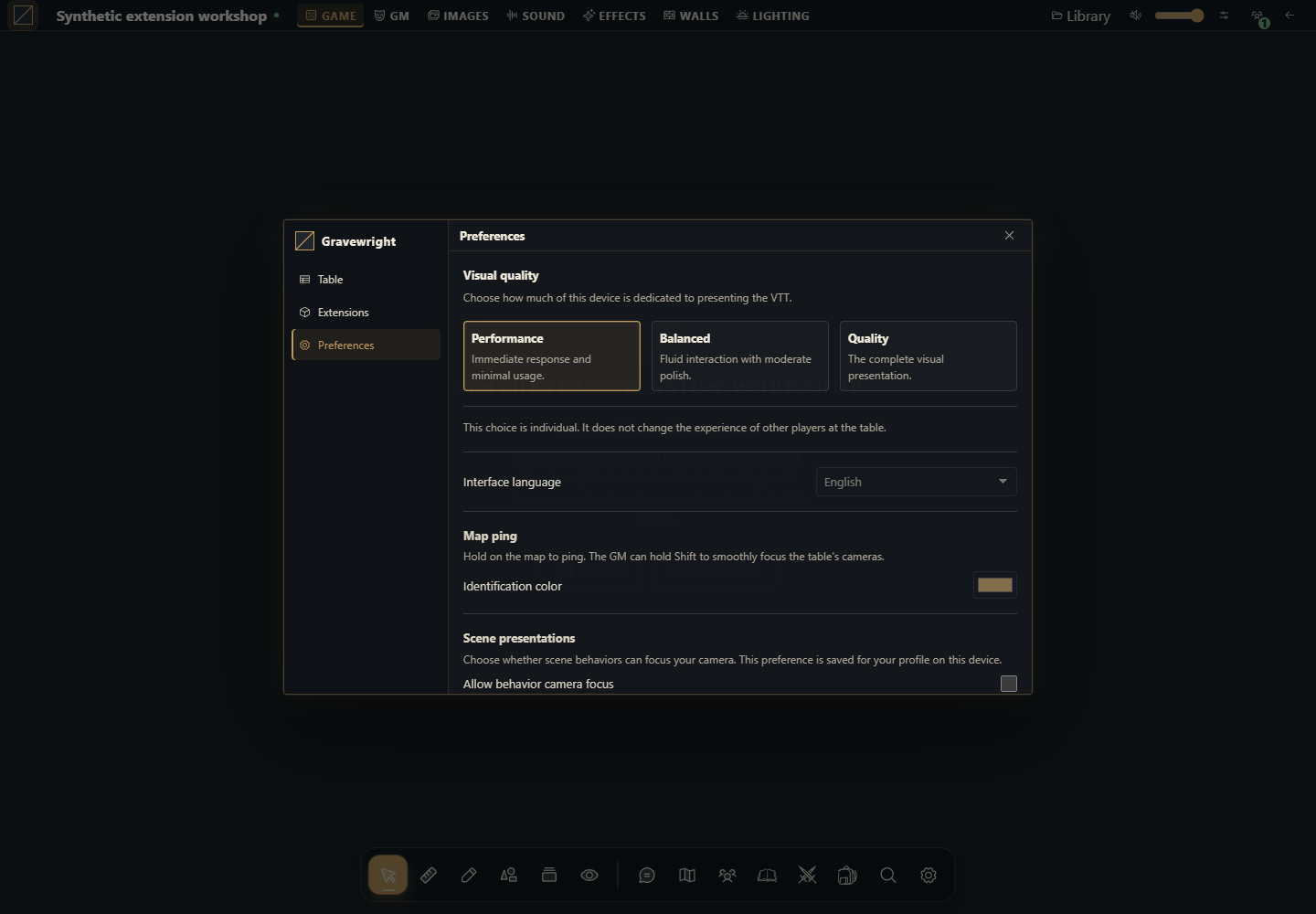
On the 0.3.0 table, click the Gravewright button, open Preferences and find Interface language. Choose Português (Brasil) or Español and wait for the page to reload. This control saves UserPreference.locale for the authenticated account; it is not a campaign setting. The general account/security form does not contain this selector in this release. Repeat as another account and select English there.
Check supported labels where the host uses those exact keys: Save becomes Salvar or Guardar, Close becomes Fechar or Cerrar, and Search becomes Buscar. Most text remains English because only six keys are included. A package-local i18n catalog and an authored name are separate content; do not promise that this six-key package translates every extension.
5. Verify fallback, updates and disabling
As owner, use Deactivate languages / Desativar idiomas, then reload existing pages. An unavailable personal locale resolves to English on the next request; authored campaign text is unchanged. Re-enable and verify each account’s explicit choice. To expand the catalog, add exact current host keys with preserved placeholders to both files, change version to 1.0.1, build and install that new ZIP, then activate that exact release globally. Do not edit extracted installed files or overwrite the original ID/version.
How to use AI to extend the catalog
Extend this exact language-demo package for Gravewright 0.3.0 with [specified host strings]. Inspect localization.py, the host templates and the existing language package before proposing keys. Preserve source strings, placeholders, GPL notices, en fallback and the separate per-account language choice. Keep one global locales package with no system/Django block. Deliver both complete JSON files, versioned manifest, ZIP commands and tests for owner activation, two accounts, missing keys and disabling.