
Campaign management
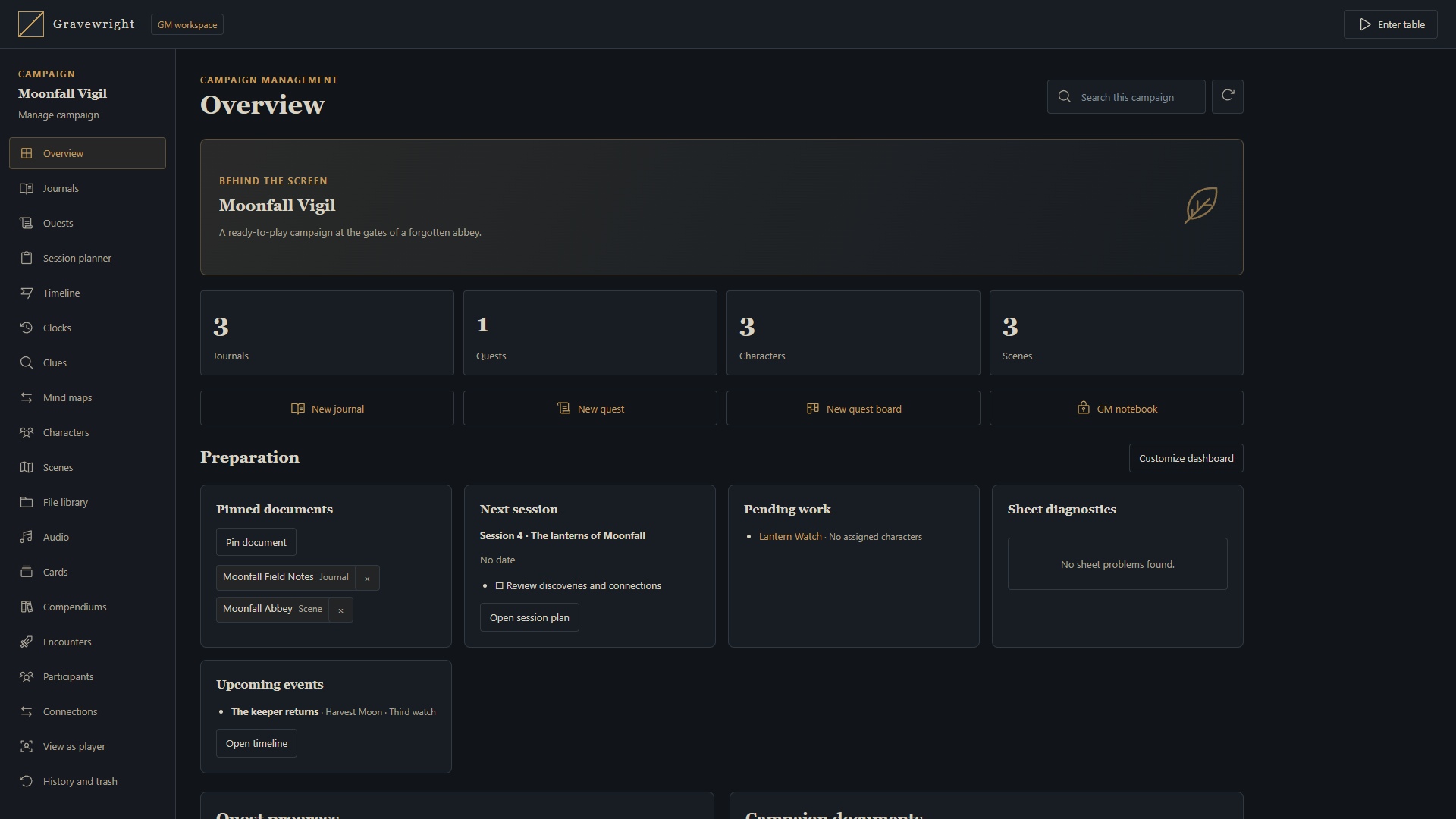
Native GM preparation, seven planning tools, archives and history outside the table.
Documentation · Português (Brasil) · User guide
Use Manage campaign on a campaign card or its cover preview to prepare
campaign content before entering the tabletop. The link opens
/campaigns/<campaign-uuid>/manage for the selected campaign.
Access follows the current campaign membership. Every campaign GM can use it, including a co-GM whose account has the participant role. A host owner who is only a player in that campaign receives no management access. Players, streamers and nonmembers cannot use this GM workspace. Changing or revoking membership takes effect on subsequent authorized requests.
Content tools
The management area uses the campaign's existing documents and native editors. There is no second campaign copy to merge back into the table.
| Area | What to prepare |
|---|---|
| Journals and quests | Diaries, pages, quests, quest boards and roll tables in the native journal editors, with their normal attachments and access rules |
| Clocks | Progress clocks for the campaign or selected scene, with visibility, player controls and pinning shared with the table |
| Clues | Staged discoveries shared with the table; content is delivered to players only after completion and public visibility |
| Mind maps | Topic graphs with notes, branches and links to native resources; the GM configures readers and selected player editors, who use the same graphs on the table |
| Characters and PDF sheets | Campaign actors and system sheets; in the PDF System, PDF selection, manual fields, saved rolls, calculations and reusable mappings |
| Items | Item documents and forms supplied by the campaign's installed system |
| Scenes and MapBuilder | Campaign scenes, editable map projects and compatible existing scenes; generating or updating a scene remains an explicit operation |
| File library | Campaign images, PDFs and audio through the native upload, folder and file tools |
| Audio | Tracks, playlists and the campaign's supported audio configuration |
| Cards | Native decks, card artwork and permitted deck operations |
| Compendiums | Authorized campaign and installed content, using the existing catalog and document tools |
| Members and permissions | Invitations, current participants and the native document, folder and page access editors |
In Participants, Invite players creates an invitation valid for 24 hours with a maximum of 10 uses. The native modal displays the read-only code; Copy code copies it to the clipboard when selected.
Remove participant opens a native confirmation modal identifying the person before submitting the removal. The campaign service rechecks the caller's GM membership and refuses removal of another GM or the caller's own membership.
Journals and quests use the same document models and editors as the game. The management area does not introduce a separate note format or quest system. GM-only diary pages and private documents retain their existing audience rules. Opening a document or assigning it to a quest does not grant players permission to read its private contents.
Character sheets opened from the actor directory edit the campaign actor. Independent token snapshots retain their own state and native synchronization rules. PDF layout changes remain GM operations; character values still follow the sheet's permissions. Item types and game rules belong to the installed system, so a system without item types does not gain an item catalog here.
See the MapBuilder guide for adoption, linked sources and scene updates, and Universal VTT for import limits and warnings.
Preparation tools
These tools are for campaign GMs only. Session plans, timeline events, private notes and dashboard choices are stored with the campaign, and players never receive them. Each GM has their own dashboard. Other GMs see changes to shared records the next time the page refreshes, which happens automatically every 15 seconds.
| Area | What it does |
|---|---|
| Overview dashboard | Pinned documents, the next planned session, pending work, sheet diagnostics and upcoming events. Customize dashboard shows, hides and reorders these panels for you |
| Quests | Columns for each quest status. Drag a card to another column, or use Move quest to from the keyboard. Cards show assigned characters, objective progress (objectives can be checked off on the card) and prerequisites. A quest that is active before its prerequisites are completed shows a warning |
| Session planner | An ordered sequence of scenes, encounters, quests, journals, characters, items, audio and notes, plus a checklist and private notes. Finish session records a summary and pending work; remaining steps and checklist entries are suggested as pending work. That pending work then appears on the dashboard |
| Timeline | Events with an in-world date as free text, an optional calendar date, an "upcoming" flag and links to campaign documents. Events are listed in the order you set. The calendar view shows events and planned sessions that have a calendar date |
| Connections | What a character, item, journal or scene links to, and where it is used: references in journal text, quest assignments and prerequisites, quest boards, scene pins, tokens, session plans and timeline links |
| View as player | Choose a player to see the journals, pages, characters, items and scenes the server sends that player. Journals open in a read-only preview of the player's version, with GM-only blocks removed |
| History and trash | Earlier versions of each journal, compared line by line with the current version. A GM can restore any of them. Deleted journals go to the trash, and restoring one brings back its identifier, pages, access, quest board links and files without restoring the rest of the campaign |
Type @ in editable journal text to open the reference picker in the manager. It searches campaign resources through the authorized HTTP API without joining the table. Each target retains its own access controls. In the manager, a scene reference selects that scene for preparation; on the table it opens the scene directory.
Quest prerequisites are stored with the quest and are visible only to GMs. They cannot form a cycle. Editors that do not send prerequisites keep the stored ones.
A version is recorded before each change to a journal. Saves by the same person within five minutes are combined into one version, and each journal keeps its 50 most recent versions. Restoring a version records the replaced content as a new version, so a restore can itself be undone. A version cannot be restored if it uses files that were later removed from the document. The trash keeps up to 200 deleted journals. Files belonging to a trashed journal are deleted only when that journal is deleted permanently. Map pins removed together with a journal are not recreated when it is restored.
Sheet diagnostics come from the campaign system through the optional
preparation.diagnostics system operation. The PDF System reports sheets with
no PDF selected and saved calculations that cannot be evaluated; page geometry
is still checked when a sheet is opened. Systems that do not provide this
operation do not show the panel.
Campaign exports, copies and snapshots include session plans, timeline events, dashboards and journal history, including files retained by the trash. Select Preparation when copying to include session plans, events and dashboard choices; history follows Journals. Copies include physical files. Portable imports assign one dashboard to the importing GM (their matching dashboard, or the first source dashboard, with the source owner's dashboard preferred), without adding campaign members or user permissions. Snapshots restore each current GM's own dashboard. Older archives that did not store preparation keep existing preparation and history when restored into a campaign.
Select Mind maps separately to copy collaborative graphs. Typed links point to copied resources; omitted targets become unavailable without binding to the source campaign. Portable copies clear selected editor grants, while snapshots preserve them in the same campaign. Scene-scoped maps follow the scene selection. See Mind maps for collaboration and resource permissions.
Restoring a revision revalidates document visibility, prerequisite quests and files before saving. Its expected version is the one displayed in the comparison; if another GM edits the document, open a fresh comparison before restoring. Missing files leave the trash entry intact and report an error. Session drafts survive selecting the current session, and inputs are disabled while saving.
Preparation allows 200 session plans and 1,000 timeline events per campaign.
Each session holds up to 64 steps and 64 checklist entries, with up to 32 pending
entries recorded when finishing. Each GM can pin 24 documents; each event can
link to 24 documents. Calendar dates use YYYY-MM-DD; an in-world date is
authored text and the core does not interpret a game's calendar.
Full campaign archives contain private preparation, GM notes and journal history. Share them only with their intended recipients. A portable import removes user-specific grants; it does not sanitize authored secrets into player handouts. Resource-only compendium exports omit preparation and history. Keep physical files when archiving trash attachments; exporting such an archive without its files is rejected.
Preparing content and entering play
Opening management does not start the tabletop canvas, Pixi renderer, game WebSocket connection or table presence. You can organize content without joining the live scene. Enter table remains a separate action.
Saves change the shared campaign records. Explicit commands such as playback, broadcasting a scene or drawing cards retain their native effects and permissions; use them when you intend to change that campaign state. Merely opening management does not execute those commands.
Keep the normal save and conflict workflow. Each new logical mutation uses a new request UUID; a retry of the same operation reuses its UUID. Revisions detect concurrent editing. If a document changed elsewhere, reload current state and review the edit rather than replacing its expected revision silently. Native editors keep their pending-save, closing and disposal behavior.
Authorization and integration
The server rechecks campaign membership, GM access and resource ownership. Hidden buttons are not the authorization boundary. A management URL or a known asset ID does not authorize access to another campaign. Content delivered to players and streamers remains filtered by the corresponding native services.
The Inside page adds can_manage to its presentation rows using current
memberships; the public campaign JSON format is unchanged. Management tools reuse
the public browser API and native domain services instead of writing documents
directly or creating separate stores. See the API reference for
revisions, receipts, file transfers and system-owned capabilities.