Map Builder reference
Builder workflows, Smart Objects, automation, supported limits and developer contracts.
Documentation · Português · Universal VTT · Frontend
Map Builder is the campaign GM's workspace for editable map projects. Draw a map from materials or import a finished image, add native walls, doors, objects, lights and effects, then generate or update a scene. The project remains editable separately from the scene used at the table.
This guide describes the Map Builder implementation in the documented 0.3.1 source revision. The Smart Objects design direction distinguishes implemented capabilities from proposals.
Find the right workflow
| Your starting point | Where to go |
|---|---|
| Build a new room | Build the first room |
| Choose between grid tiles, soft painting and a map image | Choose a starting method |
| Organize images, families and collections | Build larger maps |
| Organize or select project objects | Selection and project layers |
| Recover a failed or conflicting save | Automatic saving, then Troubleshooting |
| Apply edits to the same game scene | Update a generated scene |
| Add a switch, torch, region or timed behavior | Smart Object reference |
| Import/export a Universal VTT file | Universal VTT interchange |
| Integrate with source documents or HTTP operations | Developer reference |
GM access and entry points
Open the campaign's Scenes directory and choose New scene → Map Builder. The selected scene folder is retained for the project and its first generated scene. Only a current campaign GM can open or manage Builder projects; players and streamers cannot edit them. Opening the editor does not switch the players' broadcast.
To resume, use Panels → Projects, or right-click a scene linked to a project and choose Edit with MapBuilder. The linked scene has the red map icon in the GM's directory. A scene imported as an ordinary image or through Universal VTT has no editable Builder source unless it was created from a Builder project.
Project, preview and game scene
| Action | Result | Effect on the game scene |
|---|---|---|
| Edit, Undo/Redo, automatic saving or Ctrl+S | Save the editable project | Requires Generate scene or Update scene to apply to the table |
| Preview | Inspect artwork with every project layer shown | No scene write; editing pauses |
| Simulate in a Smart Object editor | Trace one local graph | No gameplay effects |
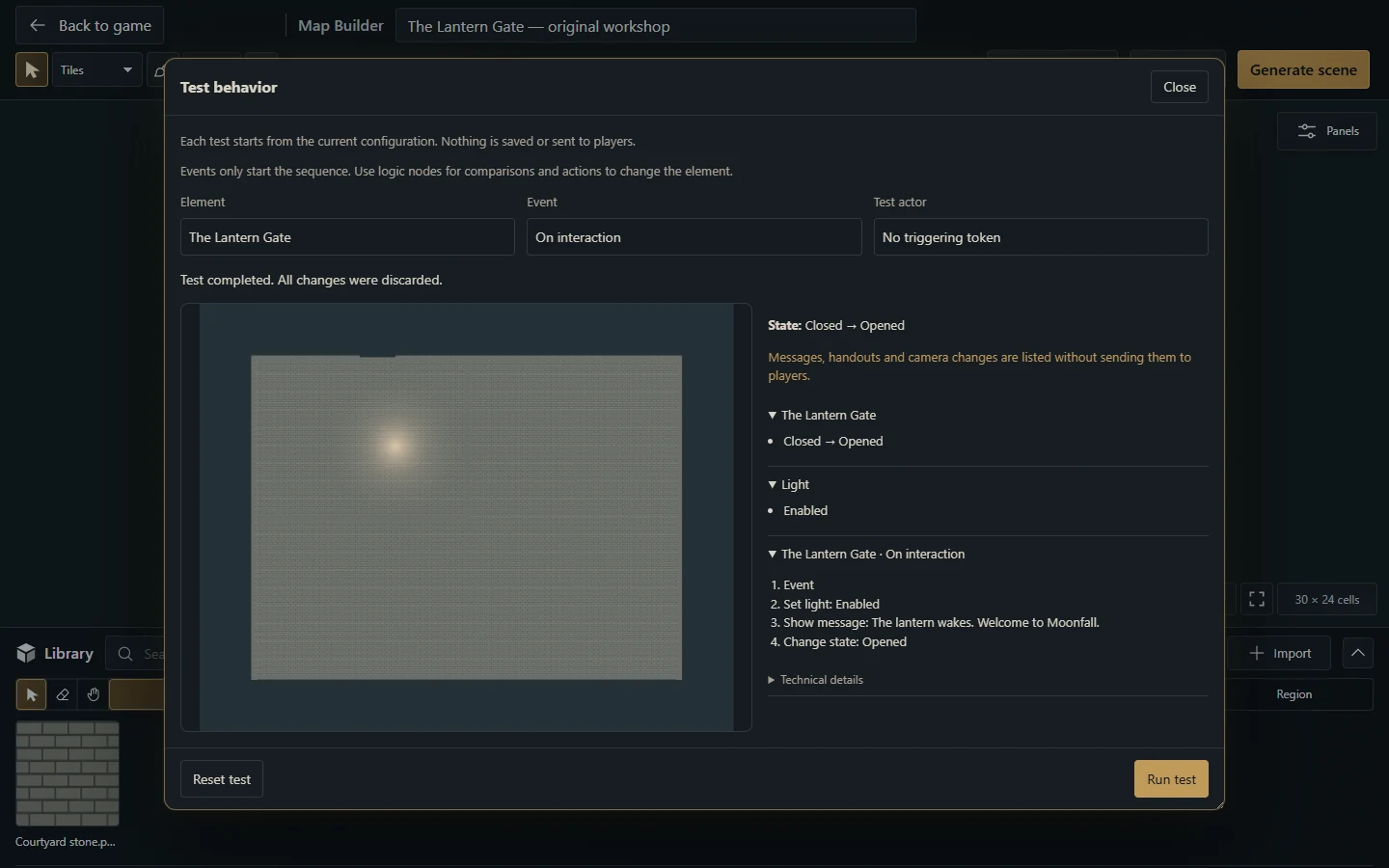
| Test behavior | Rehearse through the server and report predicted changes | The rehearsal is rolled back |
| Generate scene | Create the project's first native, GM-only scene | Opens it for the GM; the previous player broadcast remains |
| Update scene | Apply project changes to the linked scene | Clients viewing that scene receive the committed update |
| Activate for players in the scene context menu | Make the scene player-visible and broadcast it | Connected players switch to it |
Build the first room
As the campaign GM, choose New scene → Map Builder. The selected scene folder carries into the project. Entering does not change the current scene or the players' broadcast.
Enter the map name directly in the header. Open Panels → Settings → Map settings to choose dimensions, cell size and background. Return to Layers to rename Layer 1 or add another named layer.
Start with the default solid floor, plain wall and native door, or choose Import in the bottom Library for your own artwork. In the import modal, choose image files and their type: Floor, Wall, Door or Object. Optionally assign them to an existing asset family or create a new one. Select an image or family in the library to use its brush.
Open Panels → Tools. With Floor, choose freehand brush, rectangle, circle or polygon and paint the floor. Draw walls and doors by dragging between their start and end points. A door is an independent segment and needs no existing wall. Drawing it over a collinear wall replaces that span.
Use Select to move objects and open Panels → Selection to edit their properties. Press E to erase objects. Walls and doors move and delete independently. Undo/redo restores edits, including removed objects. Space-drag moves the view; the wheel changes zoom, and 0 fits the map.
Changes save automatically; the header shows their status. Panels → Projects lists saved projects so you can reopen them. New project waits for pending changes before starting a blank project.
Choose Generate scene. The builder saves the source, renders the image, runs the native tile pipeline and creates a new GM-only scene in that folder. The GM opens that scene; players remain on their existing broadcast. In the scene's context menu, Activate for players makes it player-visible and broadcasts it in one operation, including to players already connected.
In the game's Scenes directory, a scene linked to a saved builder project keeps the same map icon, colored red. Right-click it and choose Edit with MapBuilder, alongside the normal Edit action, to reopen that project directly. Entering the editor does not change the players' scene. After editing, the primary header action becomes Update scene and applies changes to that same scene, keeping its identity and project link. Imported images and scenes without a linked source keep their normal controls. Project links are visible only to the GM.
Workspace controls
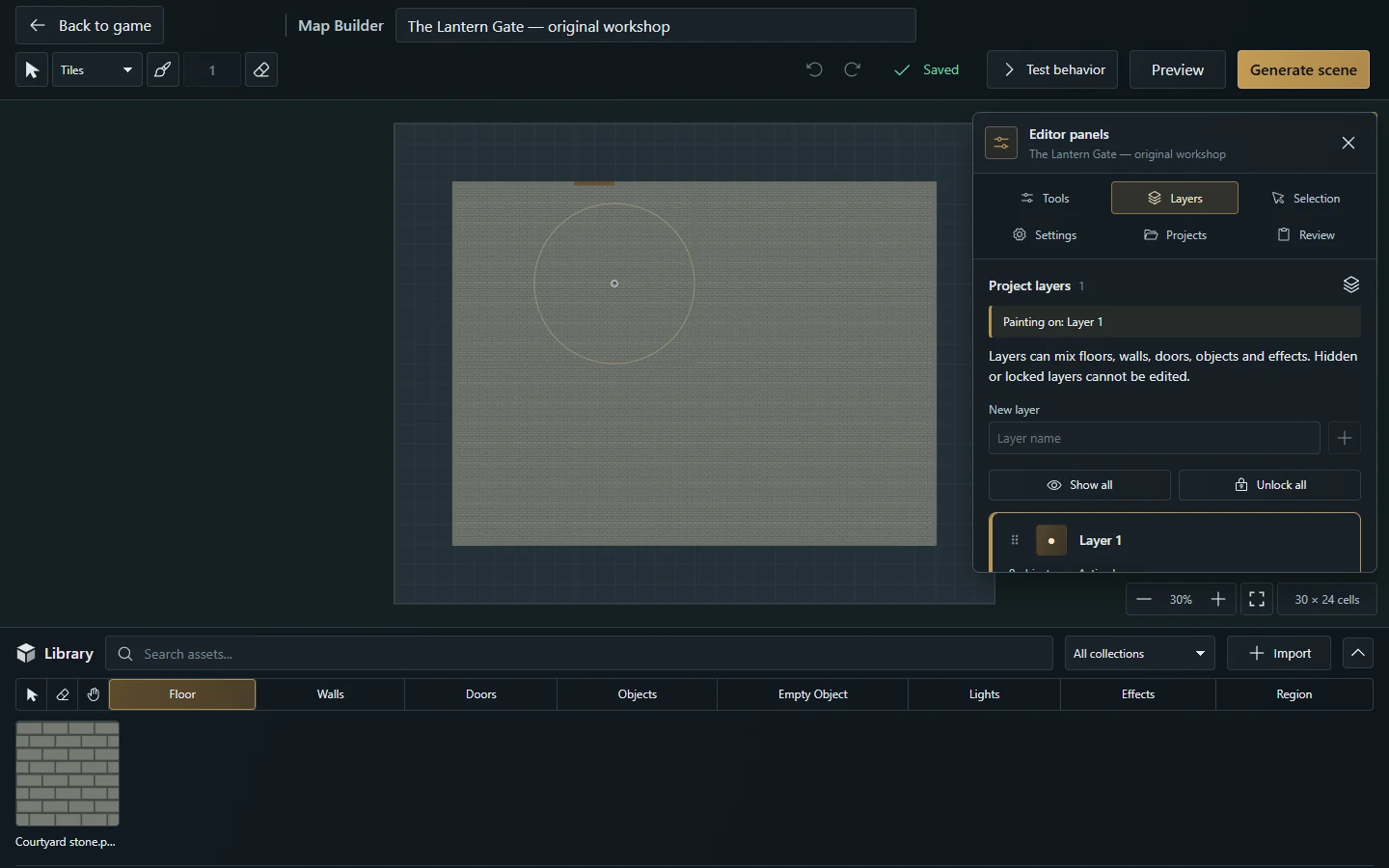
The canvas fills the space below the header, with a horizontal Library along the bottom. Panels → Tools contains drawing tools, the active material, brush options, the active layer and grid snapping. Between the editable map name and history, the header provides Select, Paint, brush size and Erase. Undo, Redo, save status, Preview and scene generation follow them. View controls and map dimensions in cells sit below the canvas.
Select (V) supports Shift-click and dragging a selection box for multiple objects. Paint (F) returns to the floor's freehand brush in paint operation, using its current material and selecting Floor in the library. Its size stays synchronized with Tools: in Tiles, 1–20 cells with grid snapping or 0.05–20 without it; Painting always uses 0.05–20 cells. [ / ] also adjusts the size. The size field is available for the freehand floor brush, including its area eraser. Erase (E) deletes a whole clicked object; use Erase floor in Tools to erase only part of a floor. Editing controls pause in Preview or while an operation requiring exclusive access is running. Background automatic saving keeps editing available.
With the floor brush active, hold Shift + left mouse button and drag horizontally to resize it without painting. Drag right to increase the size or left to decrease it; the anchored footprint and size update as you drag. Release to keep the size or press Escape to restore it. This works in Tiles and Painting, including area erasure; it changes only the brush preference, without editing the map or adding an undo step.
The header's name field applies and saves valid names after a short typing pause. Enter or Escape returns focus to the canvas; Undo reverts an accepted name change. The name stays synchronized with Settings. Header history buttons use Ctrl+Z to undo and Ctrl+Shift+Z or Ctrl+Y to redo.
Library and tool strip
The library toolbar provides search, Import, type categories and direct Select, Erase, Pan, Empty Object and Region tools. Floor, wall, door, object and light brushes stay in the same strip; Effects keeps the Particles/Shaders selector. These shortcuts close the auxiliary panel and return focus to the map. On smaller screens the strip has its own horizontal scrolling, including keyboard focus, without shifting when categories change. Search, filters, categories and the collapse arrow keep their positions when switching to native lights or effects; the hidden import action retains its slot. Empty filtered results show a message. Checkboxes use the same compact native control across settings, layers and object properties, with label and Space-key activation. Its arrow collapses the asset cards while leaving the toolbar accessible. On entry, Floor is highlighted and the gallery shows only images classified as Floor in this project. Clicking Floor, Wall, Door or Object filters the gallery and activates that drawing tool. Choosing a native light or effect preset activates its placement tool. The material selector in Tools follows the active brush and includes its default appearance.
Selection and project layers
Panels, at the upper right of the map, opens an auxiliary panel with Tools, Layers, Selection, Settings, Projects and Review tabs. The panel can be closed without hiding the library. Selecting or painting does not open the panel automatically. Object properties are available in Selection and through the object's right-click menu. Select an object and press Shift+F10 or the keyboard's context-menu key for the same menu. On touch screens, use Object options at the top of its selection properties.
The menu opens separate Properties, Appearance and Behavior modals, plus Torch components, Presence filters, the native editor or Edit nodes when supported by the selected element. Property changes save as fields are applied; Undo reverses them. Duplicate, Rotate and Delete are also available in the menu.
For an Object or Empty Object, choose Ready-made models and a model from the list. The 14 models include a chest, book, altar, bell, warning trap, pressure plate, dice challenge, quest giver, quest completion, entrance sign, timed switch and door controls. The same models appear under Behavior and in the node editor's Object catalog. Search the catalog and configure its door, journal, recipients or dice as needed. Check Add a sound when activated to choose a campaign sound and volume, or Use an active image to choose another Object image. Unchecked options add no sound or image override. The inactive state keeps the original image; Empty Objects remain image-free. Apply installs the editable nodes as one undo step; closing the catalog leaves the object unchanged. Replacing existing authored nodes requires confirmation.
Select one element and edit Element name (or Object name/Region name) to name it independently of its image file. Floors, walls, doors, decorations, lights, particles, shaders and regions support names of up to 120 characters. Press Enter or leave the field to apply and save automatically; Escape discards the field's pending edit. Layers, behavior targets, light/door choices and the scene network display authored names. Clearing an optional name restores the normal label; Empty Objects, regions and shaders keep a required name. Undo/Redo and duplication preserve names. Renaming keeps the element's identity and node connections; Update scene applies it to the existing scene. Double-click a door on the map to open its Smart object behavior editor in a modal. Review shows a project summary and scene generation action.
The panel heading keeps the current map name visible. Its six labeled tabs remain available in two rows, including on narrow screens, while each tab keeps its own scroll position. Use the arrow keys to move between tabs, Home/End to reach the first/last tab, and Escape outside a text field to close the panel. Closing restores focus to the control that opened it and preserves the selection; clicking the current tab keeps it open.
Tools places the current material, active layer and brush settings before the compact tool palette. Painting's hardness and intensity appear together; expanded help contains the brush instructions and shortcuts. Selection provides a Select on map action when nothing is selected. Projects keeps long project names readable, and Review groups the map and object counts before the scene actions. Opening and navigating panels does not edit the map.
Selection places editable properties before the material thumbnails used to change the selected object's appearance. Layers organizes named project layers: create, rename, reorder, hide or lock them, and choose the active layer for new objects. Move selected objects between layers in Selection or with Move here on the destination layer. The list shows the top layer first, with counts and active/hidden/locked states. Paint on in Tools changes the active layer. Select selects editable objects in a layer; Solo temporarily isolates it, including its native lights and effects. Show all ends isolation and reveals all layers; Unlock all removes their locks.
Layer operations
Drag a layer's reorder handle or use its arrows to change its position. Expand Layer contents to select an individual object. Duplicate layer copies an unlocked layer and offsets all its contents exactly one cell right and one cell down. The copy appears immediately above the original, visible and unlocked, with new object IDs and remapped references between copied Smart Objects. The operation is refused without changes if the copy would leave the map, overlap doors or exceed project limits. Duplication is one undo step.
Merge down moves a visible, unlocked layer into its adjacent visible, unlocked lower layer. Paint order, object identities and Smart Object references are preserved. A merge is one undo step. A layer containing terrain erasers cannot be merged over a lower layer with floors, because that would change which floors those erasers affect. Delete an empty, unlocked layer after moving or removing its objects, including the final layer. Create a visible, unlocked layer before drawing again. Layer names, order, visibility and locks are saved with the project. Objects on hidden or locked layers cannot be edited. Hiding a layer changes the editor view; generation includes every project layer.
Preview
Preview keeps the map in place and hides the grid, selection, brush guides and map outline. Drawing and property editing pause, while pan, zoom, save and scene generation remain available. Preview temporarily shows all layers, including those hidden in the editor. Back to editing restores their previous visibility and resumes editing.
Choose a starting method
| Method | Use it for | What remains editable |
|---|---|---|
| Tiles | Grid rooms, repeated materials, precise shapes or unsnapped hard edges | Concrete floor images/shapes, walls and other project objects |
| Painting | Soft terrain transitions and gradual material blending | Brush strokes and their masks, with the same project objects and layers |
| Import ready-made map | A finished PNG/JPEG/WebP/TIFF to trace or decorate | One background image plus the objects you place over it |
| Import Universal VTT | A .uvtt, .dd2vtt or .df2vtt containing grid/wall/door/light data | Native scene objects; this creates a separate scene rather than a Builder project |
Tiles and Painting are modes of the same project; switching modes preserves existing work. A ready-made background can be used with either mode. For file format support, warnings and interchange limits, follow the Universal VTT guide.
Tiles and Painting
The header's mode selector switches between Tiles and Painting in the same project. New projects start in Tiles. Changing modes preserves existing floors, walls, doors, native objects, layers and camera; the mode change is one undo step and is saved with the project.
Tiles uses materials, image tiles and asset families. Grid snapping replaces covered cells; disabling snapping retains continuous placement and shapes. Brushes, rectangles, circles, polygons, fill, area erasure and sampling share the same project, layers and undo history. Walls, doors, objects, native lights/effects, preview and scene generation remain available in this workspace.
New projects start with one empty, renameable Layer 1. It can mix floors, walls, doors, objects and native effects; no layers are assigned to object types. Open Panels → Layers to rename it or add your own named layers. Importing assets, saving and generating an empty map with only its background remain available. Existing projects retain their authored layers.
Terrain Painting
Choose Painting in the header and select a floor image or family from the library. Drag on the map to blend that material with the existing floor using a continuous circular brush. Terrain painting uses fractional positions regardless of the Tiles snapping setting; grid visibility remains your display choice. Returning to Tiles restores its snapping controls without converting existing strokes.
The header size field and Panels → Tools share the brush diameter, from 0.05 to 20 cells. Edge hardness (%) controls the solid center and the softness of the outer edge. Brush intensity (%) controls how strongly each brush dab adds material. Holding the pointer down while stationary continues building up the material; passing over an area again blends it further. Textures retain their map-space scale and orientation while different materials mix.
In Tools, choose Operation → Erase floor for a soft area eraser using the same size, hardness and intensity. It clears earlier floors on the active layer, revealing lower layers or the background; other layers, walls, doors and native objects are preserved. New paint added afterward is unaffected by that earlier eraser. The header's Erase (E) still deletes an entire object.
Each completed terrain gesture is one undo step. Escape cancels the active stroke, including accumulated paint while holding still. Locked or hidden layers cannot be painted. Preview pauses editing; save/reopen, generation and linked scene updates preserve the soft masks and mixed textures.
Import a finished map
Choose Library → Import → Import ready-made map, or use the same action in Panels → Settings or Projects. Upload one PNG, JPEG, WebP or TIFF image (up to 25 MB), or choose an image already in this campaign. Set its width and height in cells and cell size. An empty project suggests a bounded grid from the image dimensions; check these values against the map's authored grid.
The image fills the map once beneath all layers. Add walls, doors, objects, lights and behaviors over it. It is independent of brush categories and is never tiled as a floor texture. Replacing it keeps existing objects in place; dimensions that would put objects outside the map are rejected. Remove map image in Settings removes the background without deleting its campaign image. Import, replacement and removal use Undo/Redo and automatic saving, and appear in generated or updated scenes.
Build larger maps
Library, families and collections
Search the library by image name and choose a type category to filter it. Asset classifications and optional names, collections and families belong to the project; they do not rename campaign images used elsewhere.
Import opens the application's import modal. Choose one or more images, set their type to Floor, Wall, Door or Object, and optionally choose or create an asset family. You can also choose or enter a collection. The chosen type, family and collection apply to all files in that upload. Lights do not use image assets and are outside this import workflow.
Each type category shows only that project's images of the selected type. Campaign images without a project type remain available under Unclassified images in Panels → Tools → Material. Select one there to assign the active tool's type; its card then appears in the matching category. This classification does not change the campaign image or its use in another project.
Use the library's Collection filter to show one collection or All collections. Open Library settings below the asset cards to edit the selected image's project name, collection and type. Scroll within the dock to reach these controls; the dock keeps its configured height. Collections are optional names of up to 80 characters, with surrounding spaces removed. A family card appears when at least one member belongs to the selected collection; choosing the family still paints with all its members.
An asset family groups variations of the same material or object, such as three dungeon floor tiles. Family names belong to this project, are trimmed, must contain 1–80 characters, and are matched exactly. All images in a family must have the same type. Select a family card in the library or choose the family under the material selector's family group to paint with all its members. Individual images remain selectable when you want a specific variation.
Double-click an existing image card to open the asset editing modal and change its name, type, family or collection. An image already used on the map cannot change type; upload a separate copy to use it with another brush. Adding or removing a family member affects future painting; it does not replace images already painted.
Remove asset in this modal asks for confirmation in the application's modal, then deletes the image from the whole campaign. This also cleans up dependent saved projects and native scenes, preserving floor, wall and door geometry. Other unsaved changes in the current project are retained. Undo cannot restore the deleted file.
Tiles brushes, erasing and sampling
In Tiles, the floor tool has five drawing options:
Brush: drag with a square or round brush. With snapping enabled, it paints cells; the round stamp is centered on the pointer's cell and the square stamp starts there. With snapping disabled, both brushes follow the pointer continuously, centered on it, with fractional sizes from 0.05 cells. Strokes connect pointer positions without gaps. A hover guide shows the actual area. Use the size buttons or [ / ] to decrease/increase the brush size.
Rectangle: drag between opposite corners to fill a rectangular area.
Circle: press at the center and drag to set the radius.
Polygon: click at least three vertices, then press Enter or double-click to finish. Finish and Cancel offer the same actions in Tools. Press Escape to cancel the unfinished shape.
Bucket fill (G): replace connected cells with the same material and rotation on the active layer. Variants of one floor family count as the same material; empty space forms its own region. Connections use the four neighboring cells. With snapping disabled, this tool becomes Fill shape: it changes the clicked floor's material while retaining its exact outline and erased holes.
Snap to the grid controls floor geometry as well as pointer positions. With it disabled, rectangles use fractional corners, circles have smooth round outlines, polygons retain their drawn vertices and brush strokes follow free paths. These shapes remain free geometry when saving, reopening or generating the scene. Grid visibility is an independent display setting.
Choose Operation → Erase floor to remove only the covered floor area using the brush or a shape. Other layers and object types remain intact. Erasing a large floor preserves its uncovered pieces. With snapping disabled, the eraser follows the same free geometry as the brush and shapes. When cutting legacy rectangles by grid cells, an operation that would leave a fragment below their 0.05-cell minimum is rejected without changing it. Sample (I) or Alt-click a floor on the active layer to reuse its concrete image and texture rotation. Sampling returns to the paint brush. In Tools, Erase (E) deletes a whole clicked object, while Pan (H) moves the view.
Snapped floor painting fills grid cells. For new or different material, a family chooses one member at random for each cell and saves that concrete image reference in a 1 × 1 floor tile. Free painting chooses one concrete image for the complete stroke or shape. The choices remain stable through the gesture preview, undo/redo, reopening and scene generation. Families for walls, doors and objects choose an image for each new placement. Each complete stroke or shape is one undo step.
In Tiles, painting the same floor again leaves the covered area unchanged, without adding objects or an undo step. Existing eligible family variants keep their images. With snapping enabled, each matching cell is skipped independently. Without snapping, a stroke or shape is ignored when its complete area already has the same material, including coverage shared by several floors. Holes and another material painted above that floor still need painting.
A different floor replaces the covered area on the active layer, removing the old material underneath. A free stroke crossing matching and different materials replaces its complete footprint. Geometry outside that footprint and floors on other layers remain intact. Opening an existing project does not rewrite its floors. The project still has a combined limit of 2,000 objects. If a stroke or shape would exceed that limit, the whole operation is rejected without changing the map.
Native lights, effects and editing windows
Panels → Tools controls floor stamp size, wall/door thickness, floor texture orientation and object dimensions/rotation for the active tool. Its material selector also chooses a family, a library image or the default appearance. Snap to the grid toggles snapping. Object in Tools places an image inside its configured bounding box while preserving the image's aspect ratio. Lights in the library offers the VTT's Steady, Torch and Pulse presets. Choose one and click the map to place a native light. Selection exposes bright/dim radii, color, intensity, animation, cone angle, rotation, elevation and enabled state. Light placement requires the host's dynamic lighting feature. Lights do not use image assets.
Effects offers the VTT's native particle profiles and shader presets. Choose a preset and click the map, then use Selection to adjust its native properties: particle type, density and scale, or shader radius, opacity, intensity, speed and blend mode, plus position, rotation, color, enabled state and light interaction. Effects are project objects with layers, selection, movement, duplication, rotation, deletion and undo/redo. Their centers stay inside the map; their visible extent can reach beyond that center, like a light's radius.
The game's editing windows are available inside the builder. Double-click a wall, light, particle emitter or shader, or use its edit action in Selection. The light and effect windows are the same components used at the table: shaders include the full GLSL editor, preset library and AI prompt helper; particles and lights expose their own native controls. The prompt helper copies instructions and accepts pasted code; it does not contact an AI service.
Walls and doors use the game's Configure wall/door window for presentation, movement, vision, light and sound blocking, elevation limits and secret-door discovery. For a door, use Selection to open that window; double-clicking still opens its separate Smart object behavior editor. Physical barrier settings and behavior graphs belong to the same object and can be edited independently.
Each window edits a private project draft and previews its supported changes locally. Save applies the complete edit as one undo step. Cancel, close and Escape discard it. Opening or changing a window never edits the selected game scene or the players' scene. Save/reopen and generation preserve these settings; applying them to a linked scene requires Update scene.
In Effects, the library selector shows Particles or Shaders, filters the search and arms that tool with its last preset without placing an object or adding an undo step. Returning to an image category restores the previous collection filter.
The canvas and Preview use the tabletop's native animated renderer for these lights and effects, including walls and door openings. The overlay follows the builder camera and layer visibility; Preview temporarily shows all project layers. Hidden or empty effect layers release their renderer. These elements remain dynamic native objects when generating or updating the scene, outside the raster background. They can be edited afterward with the VTT's normal tools.
With grid snapping enabled, ordinary wall gestures follow horizontal or vertical cell boundaries and use whole-cell intersections. Nearby existing endpoints and edges take priority and may be fractional; extending from an existing fractional endpoint preserves that anchor. Turn snapping off to draw diagonal walls or use fractional coordinates. Moving a selection containing walls uses whole-cell offsets while snapping is enabled. Opening a saved project does not realign existing walls or doors. Near map edges, a group containing walls stops at the last permitted whole-cell offset instead of using a fractional remainder. All objects keep their relative positions.
With Select, Shift-click adds or removes individual objects, and dragging an empty area selects objects intersecting the rectangle. Select all includes editable objects on visible, unlocked layers. Duplicate and Rotate apply to the whole selection; quarter turns rotate floors and their texture orientation along with walls, doors, objects and lights. A group move uses a single clamped offset to preserve relative positions. An invalid transform changes nothing, including when it would overlap another door. Each operation is one undo step.
Wall joins and editable nodes
Select one wall with Select to show its endpoint circles and plus handles. Dragging an endpoint moves every wall sharing that point in the same editable layer, including walls with different materials or thicknesses. Doors keep their own geometry. A locked or hidden layer cannot be edited through these handles.
The middle + divides the wall into two segments. Drag it to create and move the new corner in one gesture. The + beside either endpoint extends the wall: drag it, or click it and then click the map to confirm the new endpoint. Nearby editable endpoints and edges attract the endpoint; connecting to an edge creates a shared T node. This proximity snapping also works with grid snapping off.
Escape cancels a drag or armed extension. Each completed node move, split or extension is one undo step. Focus a handle with the keyboard: Enter or Space activates a plus, and arrow keys move an endpoint by one cell with grid snapping on, or 0.1 cell with it off; Shift uses a whole cell. Enter confirms an armed extension at the current pointer position. Invalid or out-of-bounds edits leave the source unchanged.
Extension prompts and recovery messages appear at the lower left of the canvas, aligned with the zoom controls. On narrow screens, messages sit above the view controls and wrap without covering their buttons.
Connected corners and T junctions use joined wall artwork in the canvas, Preview and generated image. Contiguous collinear segments with the same layer, image and thickness share a texture origin and direction, preserving the pattern when a segment is reversed. Isolated walls retain their authored direction. Door openings remain clear. These visual joins do not add collision walls or rewrite saved endpoints when opening a project.
Door rotation
Select one door and choose Rotation anchor point in its properties or game editor: Start of door, Center of door or End of door. The marker on the selected door shows its pivot. Rotate keeps that point fixed; existing doors default to the center. With an explicit anchor, opening rotates the image 90° around that point and closing restores it. Default (center) retains the original behavior of hiding the image when open. Explicit Blueprint hidden appearances remain hidden. Multiple objects rotate around their selection's center. The choice follows Undo/Redo, automatic saving, duplication and generated scene updates, and also controls rotation of a single door with the game's Select tool.
Empty Objects
Choose Library → Objects → Empty Object, or Panels → Tools → Empty Object, then click or drag to place an image-free object. In Selection, edit its name, size, rotation and layer. Selection, moving, duplication and multiple selection work like other objects.
Double-click it to edit the same Smart Object nodes, states, signals and actions as an ordinary object. Events only start the sequence; logic nodes make decisions. Use it as a controller for lights, sounds and other elements without placing an image. In the game, it is placed directly on the GM layer. The GM sees its faint marker on every tab, and selects or edits it on the GM tab. It remains editable in the builder, and is omitted from player/streamer scene data. Older scenes receive the same private presentation immediately, without requiring regeneration. Native edits, copies and scene updates keep it on GM. Players still trigger its authored area events by moving their tokens; delayed area/signal actions keep their original player permissions. Direct player clicks cannot activate it. It cannot receive its own image. The node catalog is the same for every element kind: Change sprite and Set appearance can control another object through an explicit Target connection. Visual nodes without a compatible target remain editable drafts and are skipped with a diagnostic when executed. Undo/Redo, automatic saving and scene updates keep its identity and behavior.
For ordinary images, levers and torches, use Move to GM image layer in the context menu to hide them. Switch to GM, right-click the object and choose Move to image layer to return it to the game. The Images tab edits public images; private images are selected on GM. Returning a mixed selection leaves Empty Objects on GM. Private images and Empty Object markers remain visible to the GM at 55% opacity across tabs; private drawings also multiply their authored opacity by 55%. Players and streamers receive none of these private elements. Changing tabs updates editing controls without rebuilding the rendered scene.
Automatic saving
Project edits save automatically after a short pause: map name, completed brush strokes, object and layer edits, settings, Undo and Redo. The header shows whether changes are waiting, saving or saved. Background writes preserve the current selection and history and do not interrupt drawing. The status button and Ctrl+S remain available to synchronize immediately.
Smart Object graphs also apply valid edits automatically. There is no manual Save/Cancel step: Close or Escape waits for pending valid edits. Invalid fields remain visible for correction and block closing. Undo/Redo changes are also saved. Opening or closing an unchanged current graph does not create an empty blueprint. Removed event graphs are discarded when older data is loaded.
A lost response retries the same logical operation and UUID, so a confirmed write is not repeated. A revision conflict pauses automatic saving and preserves the local draft. Reload saved project explicitly adopts the current server version; Save a copy preserves the local map under a new identity. Failed saving keeps edits in the current tab and offers recovery controls. In a live Smart Object conflict, further writes pause until the editor is reopened with the current version; its stale revision guard is never replaced silently. Discard changes discards only changes that have not been acknowledged. Reloading this tab recovers an uncertain write by confirming its original receipt before sending newer local edits. Older drafts without that write's body pause for explicit reload or copy. If the initial library or project load fails, editing stays blocked and Retry reloads it without creating an empty replacement project. Correcting or undoing a rejected edit clears that rejected save attempt, so reloading does not report it as an uncertain write. After reconnecting, Retry in a Smart Object editor also resumes the pending project save with its original receipt; revision conflicts still require explicit recovery.
Returning to the game waits for pending project changes. If saving fails, the editor stays open so the GM can retry or explicitly discard. Automatic saving persists configuration; it does not generate a scene or execute graph actions. Generate scene and Update scene remain explicit actions. Editing a live element applies its graph configuration to that owner and linked source through their existing revision checks, without operating the mechanism.
Update a generated scene
Keep the project to edit the map later. Generate scene creates its first
scene; afterward the primary header action becomes Update scene. Reopening
the project from the game's scene directory updates that same scene rather than
creating another one. The header action and Panels → Review → Update scene
replace the tiled background and the resources generated
by this project in its linked scene. Manually placed tokens, images, lights,
particles, shaders, drawings, fog and other scene content remain in place. Scene name, folder,
visibility, broadcast and environment settings remain VTT choices. Existing
native doors keep their live open/closed/locked state during an update.
Lights, particles and shaders also retain their live enabled state when the
corresponding authored enabled setting has not changed. An intentional change
to that setting in the project applies on update.
Secret-door discovery follows the same rule: runtime discovery is preserved
while the authored discovered setting stays unchanged; an intentional project
change is applied on update.
Authorized Move/Rotate actions acknowledge their native geometry in ownership history while leaving the editable source unchanged; updating the scene reapplies authored positions and angles. Manual VTT edits to generated objects are imported when the project opens, when returning to its browser tab and before updating the scene. Compatible changes to names, geometry, artwork, lights, effects and Blueprints appear in the editable project; deleted generated objects disappear from it. Split wall spans remain independently editable. Manual objects added directly to the scene remain separate from the project. Runtime interaction settings are preserved when their authored default is unchanged, and an intentional authored change applies on update. Region enabled state stays live while authored enabled/layer settings remain unchanged; an intentional authored change wins. Configuration updates quietly baseline occupancy rather than firing presence graphs.
Updates and synchronization require both current project and scene revisions. Changes to different properties merge with pending project edits. Undo keeps imported game changes while undoing local edits. If the same property was edited differently in both places, synchronization stops and keeps the local draft; use Reload saved project or Save a copy to resolve it. Object type changes and geometry the project cannot represent also stop with a specific diagnostic. Changes that race with rendering still require a fresh synchronization. Keep map dimensions and cell size unchanged when the scene contains manually placed content. Existing version 1/2 projects can acquire ownership history if their original generated IDs, native data and grid geometry still match exactly, allowing only live door-state changes. Opening the project checks eligibility without writing; saving records the proven ownership before replacing its old source. Without that proof, the legacy linked scene cannot be updated from this project. The builder never infers ownership from nearby or visually similar objects. Use a new project when authoring an independent scene. Uploaded image assets remain in the campaign library.
Keyboard and pointer shortcuts
Map and tool shortcuts apply when focus is outside an input or editable text. Ctrl shortcuts also accept Command on macOS. Modal editors have their own shortcuts; a running exclusive operation or Preview can disable editing.
| Shortcut | Action |
|---|---|
| V / F / E | Select / floor paint brush / erase a whole object |
| W / D / H | Wall / door / pan tool |
| Shift-click or drag a selection box | Add/remove selection members or select several objects |
| Ctrl+A / Ctrl+D | Select editable objects / duplicate the selection |
| R | Rotate the selection by 90°; a single door honors its configured pivot |
| Delete / Backspace | Delete the selection |
| Ctrl+Z / Ctrl+Shift+Z / Ctrl+Y | Undo / redo |
| Ctrl+S | Flush valid project changes to the server |
| [ / ] | Decrease/increase floor brush size |
| Shift + left-drag with a floor brush | Resize the brush without painting; Escape restores its previous size |
| I or Alt-click on a floor | Sample its image and texture rotation |
| G in Tiles | Bucket fill with snapping; Fill shape without snapping |
| Enter or double-click while drawing a polygon | Finish the polygon |
| Escape | Cancel an active gesture; otherwise exit Preview, clear selection or close the focused panel as applicable |
| Space + drag, middle-button drag or Pan | Move the camera |
| Wheel / + / - | Zoom around the pointer / viewport center |
| 0 / Home | Fit the map |
| Arrow keys with canvas focus | Move the camera |
Practical limits
The server validates these limits; an operation exceeding a budget is rejected. The developer contract lists additional shape, rendering and Blueprint limits.
| Resource | Limit |
|---|---|
| Map width and height | 1–200 cells each |
| Cell size | 16–256 px |
| Generated map raster | 16,777,216 pixels, or the host's lower configured limit |
| Project layers | 32 |
| Combined project objects | 2,000 floors, walls, doors, decorations, lights, particles, shaders and regions |
| Generated native objects | 5,000, including wall segments and managed surfaces |
| Classified project images | 256 |
| Uploaded image | 25 MB and 40 million decoded pixels |
| Project document | 1 MB, with separate contour and brush-work budgets |
| Names | 120 characters for elements; 80 for layers, families and collections |
Width, height and cell size share the raster budget: their individual maximums cannot all be used at once. Highly detailed strokes can reach shape or brush budgets before the object count is full. Separate a dense area into simpler strokes or reduce its dimensions rather than repeatedly submitting the same rejected edit.
Troubleshooting
| Symptom | Check and next action |
|---|---|
| Drawing does nothing | Leave Preview; choose a visible, unlocked active layer and a drawing tool. If no layer remains, choose Create your first layer. |
| An image is absent from its category | Check its project type and the search/collection filter. Unclassified campaign images are available in Tools → Material. |
| Soft painting is unexpected, or the fill tool changed | Check Tiles/Painting, snapping, brush operation, hardness and intensity. Object erasure and floor-area erasure are separate tools. |
| A new map image moves or crops existing work | Check Width/Height in cells and Cell size. Replacements keep object coordinates; dimensions that would exclude objects are rejected. |
| A TIFF has no thumbnail | Some browsers cannot preview TIFF. The server still validates supported TIFF uploads; inspect any returned upload error. |
| Saving stays blocked | Correct the highlighted settings/property/graph field, or undo the rejected edit. Graph fields with invalid values also block closing. |
| Saving fails after a connection loss | Keep the current tab and use Retry after reconnecting. Retrying an uncertain write keeps its original receipt; correcting validation uses a new operation. |
| A revision conflict appears | Use Reload saved project to adopt the server version or Save a copy to preserve the local draft. Repeated Retry does not rebase a stale revision. |
| Update reports a changed/deleted generated object | Reopen the project or return to its tab to synchronize compatible game edits. If both editors changed the same property, use the offered reload/copy controls to resolve the conflict; the existing project remains linked to its scene. |
| Players still see the old map | Confirm that Generate scene/Update scene succeeded, then verify which scene is broadcast. Generating a private scene does not activate it for players. |
| Hidden editor layers appear in Preview or the scene | Layer hiding is an editing aid. Preview and generation include all project layers; control live privacy through the game's GM/image layers. |
| Behavior did nothing | Check its starting event, explicit actions, Target bindings, player lock permissions and automation pause state. Use Test behavior and the Automation log for diagnostics. |
| Asset removal affects another map | Remove asset deletes the campaign resource. To stop using an image in one map, change/remove that placement or background instead. Undo cannot restore the deleted file. |
Smart Object reference
Start with the element you want to operate, then connect one starting event to explicit actions. An empty graph does not create an implicit toggle. Graph configuration saves automatically; gameplay execution is a separate action.
| Goal | Reference |
|---|---|
| Make a switch or linked torch | Levers, Composed torches |
| Trigger actions when tokens enter/leave | Regions and pressure plates, Empty Objects |
| Share conditions or coordinate objects | Composite conditions, Variables and named signals |
| Wait, count or restrict repetition | Persistent execution controls, Delay, Timer |
| Reuse or inspect behavior | Templates, Scene network, Server rehearsal |
| Change a surface, present a message or move the triggering token | Dynamic surfaces, Messages/handouts, Teleport |
The following reference covers the shared node editor and its supported element adapters. The design direction records proposals; it is not a list of additional controls available in this checkout.
Door Smart Objects
Each element owns its blueprint. Doors, levers, torches and presence regions share the editor, reusable behavior templates and the GM's scene network view. The editor uses the application's existing modal system and shows the actual element instance.
Double-click an editable door on the Map Builder canvas to open Smart object. The modal has three areas: the Events list on the left, the graph canvas in the middle, and appearance settings and Simulation on the right. These areas stack on narrow screens.
The instance node shows the element's name and actual current state. Doors
offer On interaction (onInteract) and On destroy (onDestroy).
Objects, including levers, torches and Empty Objects, also offer On area enter
(onAreaEnter) and On area exit (onAreaExited). Regions offer
On area enter (onAreaEnter), On area exit
(onAreaExited) and On destroy. Named signals provide On signal
(onSignal). Geometry and the initial state remain editable in Selection.
Events only start their connected sequence. They do not compare values, choose a state or change the image. Use logic nodes for decisions and action nodes for changes. A mechanism with a blueprint and an empty interaction graph does nothing when activated; it has no automatic toggle.
For a complete lever toggle, connect On interaction → Check state: Deactivated. Connect True → Change state: Activated → Change sprite with the active image, and False → Change state: Deactivated → Change sprite with the inactive image. Both state and image actions belong to this same sequence. For a torch, use Normal/Turned; its flame remains an independent action. Conditions read the state at the start of the event, even after a state action. Default appearance by state remains a separate optional visual setting.
Area events start for every eligible token crossing the boundary. The region's occupancy changes only on first arrival and last departure; first/last tests belong in logic nodes. A region has no direct interaction port. Editing configuration does not start gameplay sequences.
For an object, its authored size and rotation define the area. A token's center entering or leaving that box starts the corresponding graph, including both events when an accepted movement passes completely through the area. Area events do not toggle the object or change its image. Use Event context for the triggering token and presence count, and explicit condition/action nodes for the response. Moving, resizing, rotating or importing objects quietly refreshes membership. Simulate and Test behavior also support both object area events.
To reuse another object's configured behavior, connect the area's event to Interact with object, then connect an Element reference to its Target. This explicitly runs that target's On interaction graph, including connected state, sprite, light and sound actions. Change state changes only the state; it does not call another event or replay the target's sprite actions. Native objects without a blueprint keep their normal toggle, while an authored empty interaction graph does nothing. Interaction chains share the existing limits, transaction and retry receipt. Test behavior rehearses the complete chain; local Simulate lists the requested interaction without running other graphs. The target interaction is queued after the source event's actions, like named signals. It follows the target's existing logic, including any authored toggle.
Autosave stores edits in the project. When the project is linked to a scene, click Update scene to apply changed graphs to the game. Returning to the game alone does not update that scene. The save status and behavior editor state this distinction; updates keep the same scene ID.
On signal (onSignal) receives a named signal from Emit event or a
one-shot timer with the same name. Select a named signal to expose its port on
the instance node. The authored signal name remains unchanged. There is no
separate timer-expiry event ID: existing signal:<name> graphs remain the
receivers.
On destroy runs immediately before an explicit in-game deletion, including selection deletion or clearing a native layer. It can switch another light, change another element or notify a named signal receiver while the owner still exists. Removal and its effects share one transaction; a failed graph keeps the owner and rolls back its effects. Retrying the same command reuses its receipt. One command can remove at most 32 owners with connected destruction handlers. Only authorized native editing commands remove elements. Paused automation removes the element without executing its destruction graph.
Removing an element in the Builder, updating a generated scene, changing configuration or deleting an asset or campaign does not execute this gameplay event. Timers and waits owned by a removed element are cancelled. For effects that must continue later, send a signal to another surviving element and schedule the work there. Test behavior predicts the removal and shows Removed for this test, while keeping the real map, project and history intact.
Each state has three appearance options:
Native appearance: use the door's material while closed or locked and hide its image while open.
Hidden image: hide the image in that state, retaining the native geometry.
Use image: choose a project image classified as Door for that state, including an image to display while open.
Events offers only the supported starting events and their node counts.
There are no event-level state filters. Loading earlier data discards onChange
and state-specific entry, exit and interaction graphs; it does not migrate their
actions. Elements and asset files remain in place. Rebuild those sequences under
On interaction, an area event or a named signal. Appearance selection remains
independent of the chosen graph.
Each event occupies one row on the instance node, with its socket on the right.
Its cable leaves horizontally from that socket. Drag from an event port to start
that event's branch, even when another event is selected. A line follows the
pointer. Release it on empty canvas
to open the node chooser at that position; choosing a type creates the node and
connects it to the branch. Add node, or a double-click on empty canvas, opens
the same chooser without a connection. Type in its search field to filter the
list: text found in a node's name or description ranks first, and letters typed in
order within the node name also match, so
pls finds Play sound. Enter picks the best match and the arrow keys
move between options.
It offers these actions and conditions:
| Node | Configuration |
|---|---|
| Set light | Choose a light in this project and enable or disable it |
| Play sound | Choose an existing campaign sound and set its volume from 0 to 1 |
| Change state | Request Closed, Opened or Locked through the native door state |
| Check state | Compare the state at the beginning of the event and follow True or False; a connected Test value decides instead |
| Change sprite | Change, hide or restore the live image of this element or an element/group connected to Target |
| Interact with object | Explicitly start the target's On interaction behavior, including its authored image, light and sound actions |
| Sequence | Run outputs 1 to 4 one after another, each branch completely before the next |
| Switch | Match a typed Value against configured cases and choose one case or Default |
| Random | Choose one of two to four execution branches using integer weights |
| Get property | Value node: read the Current state or the Previous state the door just left |
| Compare state | Value node: compare a state Value (the current state when unconnected) with the chosen one and output True or False |
| All conditions | Value node: True when every connected Boolean condition is True |
| Any condition | Value node: True when at least one connected Boolean condition is True |
| Get variable | Value node: read a typed variable belonging to this element or scene, using the configured default when absent |
| Set variable | Save a typed value in this element or scene; a connected Value replaces the configured value |
| Compare value | Value node: compare Boolean, number or text values and output True or False |
| Emit event | Queue a named event for this element, a connected Target, or matching listeners in this scene |
| Element reference | Value node: choose a live image, door or presence region; its Element output feeds a compatible Target input |
| Element group | Value node: name an ordered list of up to 32 elements, lights or sounds and connect its typed Targets output |
| Light reference | Value node: connect a native light to a compatible Target input |
| Sound reference | Value node: connect a campaign sound to a compatible Target input |
| Move object | Move each target by an X/Y offset in cells |
| Rotate object | Add an angle around each target's own center or a door's rotation anchor |
| Set interaction | Enable or disable direct player interaction with doors, levers and torches |
| Set region | Enable or disable presence detection for a region |
| Event context | Value node: read trusted trigger identity, token metadata, event or state |
| Reveal | Mark a secret or invisible door as discovered: this door, or the door connected to Target |
| Set barrier | Make this door, or the door connected to Target, block or let through movement, vision, light or sound (sound can also attenuate) |
| Control sound | Stop a campaign sound already playing in the scene, or change its volume |
Change state, Change sprite, Interact with object, Reveal and Get property have a Target input of type Element (orange). Without a connection the target is the edited element; with an Element reference it is the referenced element. State and visual actions apply directly in the current sequence; a state change does not start another graph. Interact with object and Emit event queue the target's graph. Their Next output continues the source sequence before that queued graph runs, within the same command. A chain is limited to 32 element operations and 4 on the same element. Receivers of a Scene-scope signal use a separate budget of 256 deliveries, so one broadcast can reach many listeners; each receiver still counts toward its 4 operations. Exceeding any bound fails the whole command without persisting anything, and the automation log shows the chain with the bound that was reached: an element that ran more than 4 times (a repeating chain), more than 32 element operations (a long chain) or more than 256 scene-signal deliveries. A chain started by a player never locks or unlocks a door unless the GM sets that Change state action's Locks option to Players may lock or unlock: then a lever operated by a player can unlock another door, and an interaction graph on a locked door can open it. Without the option the operation is skipped and logged. Barrier changes are play state, like the door state: scene updates keep them. A reference whose door was deleted stays in the graph marked Missing door; the action that needs it is skipped and logged as Missing target. Pick on map, on an Element reference or Set light node, steps the modal aside: click the door or light on the builder map to choose it, or press Escape or Cancel to keep the current target. Duplicating doors together points copied references at the copies; references to doors outside the copied group keep their target.
Value nodes have no Input or Next; they are evaluated when an executed node reads them. Their diamond sockets carry a type, State (violet) or True or False (cyan), with one source per input. For example, connect Get property: Current state → Compare state: Locked → Check state · Test, and start Check state from On interaction. Its True branch can change the state and play an unlock sound. Current state for simulation supplies the initial snapshot for a local test; it is not a filter or parameter on the event.
Change sprite is an image action in the sequence. Change state → Change
sprite in onInteract applies the requested state and keeps the chosen image.
To change another object's image from an area, connect On area enter → Change
sprite, select Use image, and connect Element reference → Target to the
object that should change. The target does not need an interaction graph. Connect
On area exit → Change sprite: Native appearance to the same reference to
restore it. An Element group can change several images together. This changes
artwork only; it does not change state or run the target's events. Ordinary images
retain their base image, layer and box privately while overridden; restoring
their native appearance removes the override. Native move/resize keeps that
restoration box in sync. Unchanged authored geometry preserves the override on
Update scene; native manual geometry changes retain the existing conflict
guard. Empty Objects and regions remain image-free while controlling other
elements. Nodes that need resources become available when those resources exist.
The event itself does not compare, toggle or restore an image. Players receive
only the resulting appearance.
Lights and sounds must already exist in the project or campaign to be available as targets; otherwise the chooser keeps the type disabled and explains why. Other node types use the same catalog for every element kind.
Sockets are the circles on node edges: the Input on the left and outputs on the right, colored by output (Next gold, True green, False red; door ports identify their starting event). Connections take the color of their source. Drag from an output to an existing node's Input to connect them directly.
Value connections can also start at the input: drag Target to an existing reference's Element output, or release on empty canvas to create a compatible reference. Clicking Target opens the same filtered chooser. Select Element reference, then choose the other object in its Element field or with Pick on map. This creates the target connection; connect the event separately to the action's Input. Enter or Space on a value input opens the chooser; Shift+Enter lets you select an existing compatible output with the keyboard. An already connected input keeps its connection until you remove it.
Each output can start another branch. Press Escape, click outside the chooser or release outside the canvas to cancel the pending branch; creating no node leaves the graph unchanged. Clicking an output and then an Input remains available. With an output focused, Enter or Space opens the same node chooser. To connect to an existing input using the keyboard, press Shift+Enter on the output, use Tab to reach the Input, then press Enter. Actions continue through Next; a condition has separate True and False outputs. Version 2 accepts multiple branches per output, evaluated depth-first in stored order; a shared node executes once per event. Conditions read the event's initial state, and action nodes execute in the stored sequence. Click a connection to remove it, or focus it and press Delete. Deleting a node with its × button, or with Delete on its focused header, removes its connections. Drag node headers to arrange the graph, or focus a header and use the arrow keys; Shift increases the keyboard movement. Saved positions start at the graph's top-left origin: moving a node past that edge keeps it on the edge and shifts the other nodes instead.
Drag empty canvas or use the middle mouse button to pan; the wheel or a pinch zooms around the pointer. With the canvas focused, the arrow keys pan, + and − zoom and 0 frames the graph. The controls at the bottom right show the zoom level, which resets to 100% when clicked, and Fit graph frames all nodes. Undo and Redo in the modal toolbar (Ctrl+Z, Ctrl+Shift+Z or Ctrl+Y) step through edits, including connections, nodes, parameters, positions and appearances; valid results save automatically.
Click a card to select it; Shift, Ctrl or Cmd adds or removes cards, and Shift+drag on empty canvas draws a selection rectangle. Ctrl+A selects every card. Dragging any selected header, or the arrow keys on its focused header, moves the whole selection, and Delete removes the selected nodes and their connections; the event node stays. Ctrl+C copies the selected nodes with the connections between them, Ctrl+V pastes them at the pointer, also into another event or door while the page stays open, and Ctrl+D duplicates them beside the originals. Moving cards past the graph's top or left edge keeps them on the edge and shifts the other nodes in every event. The minimap at the bottom left shows all cards and the visible area; click or drag it to move the view.
For example, connect On interaction → Check state: Closed → True → Change state: Opened → Change sprite → Play sound → Set light. Choose the open-door image, a sound and the room's light, leaving the light enabled. The interaction starts the sequence, the condition chooses a branch and the actions change the door, sound and light.
Simulate highlights the executed nodes and connections and lists their actions under Simulation locally. It does not operate the scene, play audio or change lights. Valid blueprint edits apply and save automatically. Close waits for pending edits; it does not undo acknowledged changes. Use Undo/Redo to revise them. Invalid fields must be corrected before closing.
The generated door uses its existing native door_state for collision, vision,
lighting and sound propagation. The server validates targets and graph limits,
then executes effects inside the existing transaction and command receipt. A
retry cannot repeat the effects. Reading, reconnecting or reopening a scene
restores its current appearance without replaying actions. A state request does
not start a new event; interaction is a separate starting event.
Players retain their existing door permissions: a configured interaction on a
locked door may play its effects, but cannot unlock the door or change it to
another state. Light actions require dynamic lighting to be enabled.
The GM receives the graphs; players and streamers receive only the current presentation. Image delivery follows that state's visible appearance, including the existing rules for undiscovered secret or invisible doors. Duplicating a door preserves its blueprint. Duplicating a group with a targeted light remaps the new door to the copied light; a door copied alone keeps the existing target.
Composite conditions
Add node → Logic includes All conditions (all, AND) and Any condition
(any, OR). Their four Boolean inputs A–D accept Compare state results
or another composite node. Connect two to four inputs; unconnected inputs are
ignored. A draft with zero or one connected input remains editable and evaluates
False. The node shows its connection count and explains the minimum.
Connect Result to Check state → Test, and connect the event's execution
wire to that Check state's Input. Composite nodes have no execution sockets.
For a three-torch passage, read each torch's Current state, compare it with Turned, and connect those three results to All's A, B and C. Use Element reference → Get property · Target for the other torches; an unconnected Get property Target reads the edited torch itself. Route the Check state's True branch to a Change state action targeting the passage door. To close it again when a torch returns, route False to Closed and evaluate the same rule in each torch's On interaction sequence. Each torch needs the rule so an interaction checks the combination. Conditions read the initial event snapshot; choose the branch explicitly when its actions also turn that torch.
All/Any evaluate current conditions, without counting activations or waiting for several events. Repeatedly turning one torch cannot replace another torch. Every connected input is evaluated in A–D order, and shared value nodes are read once per event. Simulate shows each result; the GM's Automation log records it during play. Generation, duplication, linked updates and campaign archives keep the typed connections and remap referenced elements. These are version-2 nodes; older blueprints are unchanged until an explicit meaningful edit.
Variables and named signals
Get variable and Set variable use a case-sensitive name, Scope (This element or Scene) and Value type (True or False, Number or Text). Element memory belongs to the edited door, lever, torch or region; scene memory is shared by the scene's elements. Get variable returns its Default value when nothing has been stored. Reading a default does not create stored memory. Set variable uses its configured value or a connected Value of the same type. False, zero and empty text are valid values. A name keeps the same type within its scope; reset existing memory before changing its type.
Connect Get variable to Compare value, then its Boolean Result to Check state → Test. Boolean and text comparisons offer Equals and Not equals; numbers also offer Less than, Less than or equal, Greater than and Greater than or equal. An unconnected Compare value reads False, 0 or empty text for its selected type. Changing a node's type removes incompatible value wires as one undo step, so reconnect them with the new type.
Each event reads an initial snapshot of memory. Assignments are applied after
that graph is evaluated: a Get variable in the same event still reads its
initial value, while the next event sees the assignment. For a persistent puzzle,
an interaction can set a scene Boolean PuzzleSolved to True, then emit
PuzzleSolved; a receiving graph can read that variable and open a passage.
The complete command, including assignments and receiving actions, commits
atomically. Repeating its request does not repeat effects.
In the event list, On signal → Signal name → Add signal creates a named receiving graph. Emit event with This element scope runs it on this element or the element connected to Target. Scene scope sends it to elements in the same scene that have that named graph. Receivers run from the bounded event queue after the sending event finishes; signals do not cross scenes or campaigns. A signal alone does not change an element's state. It carries its name, without custom payloads. Configure any desired state change in the receiving graph.
Names use 1–64 ASCII characters, beginning with a letter, followed by letters, digits, underscores, dots or hyphens. Each scope stores at most 64 variables; numbers must be finite and between −1,000,000 and 1,000,000, and text is limited to 256 characters. Each blueprint has at most 16 named receiving graphs. These nodes and graphs require version 2; existing blueprints keep their compatibility.
Simulation variables supplies private preview values. Simulation uses defaults when omitted and lists queued assignments and emissions; it neither writes game memory nor executes receiving graphs. Select a named graph to simulate that receiver separately. The GM's Automation → Variables view shows stored scene and element memory. Reset variable removes only that entry, without running events; the next read uses its authored default. A reset checks the displayed value and refuses if it changed, requiring a refresh before trying again. Players and streamers receive neither variable memory nor private graph details.
Reopening a scene, linked builder updates and campaign archives preserve live memory. Duplicating a native element starts its own memory empty; scene memory remains shared. Editing a blueprint or resetting memory never emits a gameplay event.
Groups and typed resource references
Add node → Values → Element group stores a name of 1–80 characters and an ordered list of 1–32 unique members. Choose Elements, Lights or Sounds as its member type. Reorder or replace members without changing their identities; remove a member while keeping at least one. The typed Targets output applies compatible actions to each listed member in order. These are explicit saved lists, not live searches or a rule that all members must have fired an event.
Element references and groups can include doors, levers, torches, ordinary live
images and presence regions. Baked floor and wall pixels are outside this list.
Images without a Smart Object state return no state from Get property.
Get property accepts a single Element; it does not combine group states.
State, flame, reveal, barrier, interaction, region and element-scoped signal
actions accept an Element or element group, applying only supported capabilities.
The GM log and Test behavior distinguish missing targets from existing
targets that cannot perform an action, identifying the latter by name. A mixed
group still applies the action to compatible members; incompatible and missing
members are skipped. Execution traces keep these identities separately as
targetIds, unsupportedIds and missingIds.
Light reference connects a native light to Set light, Move object or Rotate object. Sound reference connects a campaign sound to Play sound or Control sound. Light and sound groups use the corresponding typed Target ports; they cannot be connected to an unrelated resource type. The configured light/sound in an action remains its fallback only when Target is disconnected. A connected missing reference is skipped without using that fallback or Self.
Deleted members keep their UUID and appear as missing for repair; deleting a member does not silently redirect actions. Copies remap targets copied together and preserve external targets. Campaign sounds remain shared resources. Save, generation, linked updates and archives preserve group order and authored values. If an import omits audio, actors or tokens, their corresponding typed sound references/group members and presence-filter IDs receive fresh inert UUIDs. The same replacement is reused across project source, native objects and ownership history, keeping those targets unavailable for repair. Names and authored scalar text, including UUID-like text, stay unchanged.
Move, rotate and interaction during play
Move object uses relative X/Y cell offsets, each from −1,000 to 1,000. Rotate object adds an angle from −36,000 to 36,000 degrees around each target's own center; a door with a Rotation anchor point pivots on that anchor. Without Target, these act on the owning element; connected targets may be an Element, Light or their typed groups. Native image/door/light validators still apply. Presence rectangles rotate only in multiples of 90 degrees; incompatible geometry fails the command rather than approximating it. Torch images keep their linked light/effects together. These are immediate transforms, without animation, and do not change a mechanism's state by themselves.
Transforms change live native geometry, preserving the editable source. Linked ownership records recognize authorized Blueprint transforms, so they alone do not cause a manual-edit conflict. Update scene reapplies authored positions and angles; unrelated manual edits retain their existing conflict protection.
Set interaction controls direct player activation of a door, lever or torch, including the torch's flame button. The source default is enabled; the authored setting is available in Selection. Disabled controls cannot be activated by pointer or keyboard, and the server refuses forged direct requests. GMs retain manual override. This gate does not stop authored automation, signals or timers; normal action permissions and lock rules still apply. A live interaction flag survives a linked update while its authored default is unchanged; changing the authored default applies the new setting. It also survives reconnect and archives.
Set region changes presence detection. Disabling quietly clears occupancy; enabling establishes a fresh baseline without synthetic entry/exit events. Signals and scheduled work keep their normal lifecycle. Moving or rotating a region also establishes a quiet baseline. Use later token commands for new presence events.
Trigger context
Event context supplies one typed Value selected by Context field:
| Property | Value |
|---|---|
| Event | Text identifying the graph currently running |
| Triggering element ID / user ID / user name | Original source element and authenticated command actor |
| Triggering token ID / actor ID | Original presence token and its actor, or empty text without a token |
| Presence transition / Occupancy count | Original entry/exit transition and count after that transition; empty text/0 otherwise |
| Has triggering token | Boolean suitable for a Condition's Test input |
| Current state / Previous state | State values for this graph's event snapshot |
Connect identity text to Compare value or Switch, count to numeric comparisons, or Has triggering token directly to Test. Trigger metadata comes from validated server objects. Signals, Delay and Timer keep the original source, user and token metadata; they do not substitute the receiving element or the GM who inspected the queue. Event/state/previous describe the event being evaluated. Delay retains its original event snapshot; a Timer expiry takes fresh state/variable snapshots while keeping original trigger identity. No arbitrary signal payload is accepted.
Simulation context fields are temporary preview values. Simulation lists group actions and context reads without moving game objects, changing flags, storing progress or running receiving graphs. These nodes require Blueprint version 2.
Switch and weighted Random
Add node → Logic → Switch selects one path by a Boolean, number or text
Value. A connected Value replaces the configured Default value; without
a connection, that fallback is used. Reads use the event's initial snapshot,
like variable and condition nodes. Add one to four cases with distinct values
of the selected type; Boolean cases are limited to False and True. Equality
does not convert values: text 1 and number 1 are different types, and text
comparison is case-sensitive. False, zero and empty text remain valid values.
The matching Case output runs; Default runs when none matches. Case IDs remain stable when another case is removed, preserving the remaining wires. Removing a case also removes its wires. Changing the value type resets the fallback and case values, removes incompatible Value wires and any discarded case outputs (at most two remain for Boolean). Each edit can be undone with its previous values and connections. An unconnected selected output ends that path; it does not fall through to Default.
The editor makes room around expanded choice cards using their rendered size, including translated text. Layout changes caused by editing save with the graph and can be undone. Opening an unchanged graph preserves its saved coordinates.
Add node → Logic → Random has two to four Branch outputs. Each weight is an integer from 0 to 1,000, and at least one must be positive. For example, weights 1 and 3 give 25% and 75% chances. Zero disables that branch. The draw includes every configured branch, even if it has no wire; an unconnected chosen branch ends the path without drawing again. Adding or removing the last branch updates its output, and Undo restores its wires. A shared choice node runs once when execution branches reconverge within the same event.
Both nodes require Blueprint version 2. The GM automation log shows the selected case and typed input, or selected random branch and weight. Random is selected on the server under the same permissions, transactions and operation receipts as other actions. Retrying the same logical operation preserves its draw, including after a failed transaction; it cannot reroll by repeating that request. Delay continuations preserve choices already made, and Delay/Timer chains carry the private draw sequence forward without resetting it. These nodes add no persistent gate-memory entry. Saved projects, native copies and campaign archives preserve authored fallbacks and case values as content, including UUID-like text.
Simulate highlights one selected path. Random draws locally for the preview; the game makes its own choice. Neither simulation writes scene state nor runs signal receivers or scheduled work.
Persistent execution controls
Add node → Logic includes Counter, Once and Cooldown. Each has one execution Input and two execution branches; these nodes do not expose value outputs. Their private progress belongs to this element and is identified by the event and node ID. Two nodes or two receiving graphs keep separate progress, even when they have the same configuration.
| Node | Behavior |
|---|---|
| Counter | Increment once per event visit, then choose Reached when the count is at least the Activation target; otherwise choose Below target. The target is an integer from 1 to 1,000,000. Count saturates at 1,000,000, and Reached stays active on later visits. |
| Once | Choose First time once, then Already used until the GM resets this node. Place it before the effects it protects. |
| Cooldown | Choose Ready on the first visit or after its deadline; otherwise choose Cooling down. Cooldown seconds accepts 0.1–86,400 seconds. Blocked attempts keep the existing deadline. |
For three activations followed by one reward, connect the event to Counter with target 3, Reached → Once, then First time → Change state → Play sound. Counting activations of one element differs from checking the current states of three distinct torches with All/Any. Shared controls execute once when branches reconverge during one event, like other execution nodes.
Cooldown uses the server's UTC clock and persists an absolute deadline. Elapsing time does not run a graph: another authorized event must visit the node. Each execution segment commits progress and effects together; a failed action rolls back that segment, and retrying the same operation does not consume another activation. Waiting uses the separate Delay node described below.
The simulation's Persistent node preview fields configure the count before the event, whether Once was already used, and the seconds remaining for Cooldown. Each Simulate starts from those preview values and reports the selected branch; it does not read or change stored game progress. During play, the GM's Automation → Node memory view lists the stored controls. Reset node removes only that entry, checks the value shown to prevent stale resets, and runs no gameplay event. The next visit starts from the node's unused state. Players and streamers receive neither this memory nor private graph details.
Reopening a scene, reconnecting, server restart, linked builder updates and campaign archives preserve progress without replaying events. Native element copies start with empty control memory. Changing a target, duration, position or connection preserves existing progress; a changed duration applies after the current deadline next permits activation. Removing a node/event or changing its type discards that entry. These controls require Blueprint version 2.
Persistent Delay
Add node → Logic → Delay uses Wait seconds (default 3), from 0.1 to 86,400 seconds, before continuing from Next. For example: Lever turned → Change state: Open → Delay: 3 seconds → Change state: Closed. Delay requires Blueprint version 2.
A reached Delay suspends the rest of this event, including later Sequence branches, preserving their execution order. Actions before the wait commit together with its saved continuation. Other interactions can still run while this event waits. The continuation resumes on the server without repeating the event or earlier actions. Closing the editor, disconnecting every browser or restarting the server does not discard it; overdue work runs when the server is available. No database transaction remains open during the wait.
State, previous state, referenced element states and variable reads retain the snapshot taken when this event began, including values first read after the wait. Set variable actions already committed before the wait affect later events; reads in this event keep its original snapshot. Counter, Once and Cooldown consult their current stored progress when execution resumes.
Automation → Waiting shows the GM each pending wait, its element, event, actor and due time. Cancel wait removes the remaining continuation without undoing effects already committed or firing another event. Cancellation checks the displayed due time and requires a refresh if the wait changed. Pausing scene automation keeps pending waits, including overdue ones, until Resume automation. Leaving or hiding a scene does not itself pause its automation.
Changing the owning blueprint's behavior, connections or duration cancels its pending continuation; moving graph cards alone preserves it. Removing the owner or an element target used by the continuation cancels the wait. Missing light, sound or image bindings anywhere in the owning blueprint also cancel it, including resources used only before the wait. At resume, the server checks the original actor's current membership and access again; later promotion grants no extra authority to a player-started wait. A resumed segment that fails commits none of its effects and records a diagnostic, while effects committed before the wait remain.
Delay and Timer share a queue of 64 pending jobs per scene and 256 per campaign. A root chain keeps its existing limits across waits: 32 element operations, 256 scene-signal deliveries, four operations per element and 1,024 actions, plus at most 32 timed resumptions. Resuming a Delay continuation does not consume another element-operation slot. Pending continuations are private runtime work; campaign exports, snapshots and copies do not carry them.
Simulate stops at the first reached Delay, highlights that wait and reports its duration. The preview never advances time, schedules work or runs the continuation. Use an actual scene to verify delayed effects.
Persistent Timer
Add node → Logic → Timer controls a named, one-shot countdown. Its Name uses the same case-sensitive ASCII format as a signal: 1–64 characters, starting with a letter, then letters, digits, underscores, dots or hyphens. The name belongs to this element; several nodes or events on that element can control the same countdown. A timer has no Target input and does not address another element or the whole scene.
| Action | Behavior |
|---|---|
| Start timer | Create the countdown if it is absent. If it is already pending, preserve its identity, deadline, original actor and execution budget. |
| Stop timer | Cancel the matching pending countdown without firing its event. Stopping an absent timer has no effect. |
| Restart timer | Replace the countdown and start a new one from now, using this event's actor and execution budget. It also starts an absent timer. |
Start and Restart use Timer seconds, from 0.1 to 86,400 seconds (default 3).
Stop has no duration. Next runs immediately for every action; the timer does
not suspend the sending event. To close a door later, create On signal →
CloseLater, connect that receiver to Change state: Closed, then start a
Timer named CloseLater from the interaction. Other connected actions can run
immediately while that countdown is pending.
At expiry the server sends signal:CloseLater only to its owning element. This
is a fresh event: state, referenced states and variable reads use the values at
expiry, while Counter, Once and Cooldown use their current stored progress. It
does not repeat the event that started the timer. Without a matching receiving
graph, the timer completes without effects; the editor shows a hint to add one.
Timer requires Blueprint version 2. It has no repeating mode or global trigger.
Automation → Waiting identifies each Timer by name, owning element, actor and expiry time. The GM can use Stop timer, or Restart timer to count again from now using the saved duration. Both check the displayed identity and deadline; stale requests require refresh. A GM restart preserves the original actor, role ceiling and chain budget, so it cannot elevate a player-started timer. Neither control fires the expiry event immediately.
The durable queue and server worker are shared with Delay. Timers survive closed browsers and server restart; scene pause keeps them pending until resume. Blueprint behavior changes, missing required targets/resources and loss of access cancel them under the same policy as Delay; moving graph cards or renaming the map preserves them. At expiry the original actor's current access is checked again. Effects, completion and the receipt commit together; failure rolls back that expiry's effects and records a diagnostic. Earlier committed effects remain.
Timers and Delays share the 64-per-scene/256-per-campaign pending limits and the original chain's 32 timed resumptions, 32 element operations, 256 scene-signal deliveries, four operations per element and 1,024 actions. A Timer expiry consumes a new element operation; a Delay continuation does not. Rearming from a receiving graph keeps those limits, so this is not an unbounded repeating scheduler. Running timers are private work and do not enter campaign exports, snapshots or copies.
Simulate lists timer actions and follows Next, without starting a countdown, advancing time or executing its receiver. Select the named signal graph to simulate that receiver separately, and use a real scene to verify expiry.
Test behavior through the server
Choose Test behavior in the Builder to rehearse the current unsaved document. The selected starting event runs against the current configuration without an implicit comparison. The result shows the element's state before the event and after the test settles, including presence changes caused by a teleport or move. Each changed element is listed by name with readable facts, such as a door going from Closed to Opened, a region going from Occupied to Empty with the token that left, or a teleport naming the token, destination and cell. Raw stored values remain under a collapsed Technical details entry. Select an element, one of its defined events and, optionally, a Test actor. The server builds a temporary native scene and runs the real engine, including cross-element actions, signals, variables, native effects and token transport. The preview applies the returned changes to a separate copy of the map. It does not change the source, selection history or saved project. No generation, image rendering or new media files are needed.
In the table's Automation → Elements panel, Test behavior rehearses the selected live element against the current scene. An optional Test token must belong to that scene; its actor and identity come from the server. In a Builder draft, the selected campaign actor supplies an ephemeral token, centered in the selected region when applicable. Tests run with the GM's permissions. They do not impersonate a player or replace checking a player's actual permissions.
Run test shows the executed events and steps, predicted state changes, variables, audio changes and token destinations. Every run starts from the current configuration. Reset test clears the temporary result; closing the window also discards the preview. Tests always roll back scene objects, tokens, variables, node memory, jobs, logs and revisions. They create no receipts and deliver no sounds, messages, handouts, camera moves or realtime notifications. A failed chain shows its diagnostic and predicts no committed partial effects.
Delay stops traversal at the wait, and Timer actions are listed with their predicted scheduling changes. Time does not advance and scheduled receivers do not fire. Without a test actor/token, Teleport is explicitly skipped with a warning while later actions continue. A paused scene can be rehearsed without changing its pause flag. Simulate remains available in the graph editor for the existing local graph-only preview.
Automation log during play
On the table, the GM's Walls layer has an Automation tool that opens a floating window with the current scene's recent door blueprint runs, newest first. Each run shows its outcome (Completed, Blocked by the lock or Failed), time, who acted, the state before and after, and every executed event with its nodes in order: the branch each condition took, the values read and the actions with their parameters. A failure also shows its reason, such as a refused player or disabled dynamic lighting, and keeps the steps reached before it; none of its effects persist. Problems hides completed runs, and the crosshair pings the door on the map without broadcasting the ping. The window updates as runs happen and closes with Escape.
Elements provides searchable, type-filtered controls for doors, levers, torches, regions, native images and dynamic surfaces. Select an element to locate it, edit its behavior or test it. Controls apply immediately to the live scene: open/close/lock a door, toggle a mechanism or flame, show/hide artwork, enable player interaction or enable a region. Dynamic surfaces also offer a material choice and Restore original appearance, preserving their generated base image, mask and collision. Hiding a torch also gates its owned light and effects; its mechanism and flame remain independent.
Lights, particle emitters and shaders appear in the same panel, with their own type filters. Edit settings opens their existing native editor; changes apply only when saved, and Cancel preserves the scene. Their enabled switches use the same authorized native commands and revision checks. Remote updates refresh the panel while preserving a material selected before Apply material.
Selecting a door state changes it directly without starting a graph. Run
interaction starts onInteract; state and image changes require action nodes.
An empty blueprint does not toggle a lever or torch. Region changes
establish occupancy quietly, without inventing arrival/departure events. These
are GM controls: player interaction flags do not block the GM. Commands check the
displayed object revision and use receipts for retries; a conflict requires a
refresh. They preserve the authored Builder document. Existing variable and node
memory resets keep their expected-value checks in their respective panels.
Pause automation stops every element graph in the scene. Interacting with a blueprint does not change its state or execute actions, and the log records Automation paused. Objects without a blueprint retain their native controls; direct GM configuration remains available. Players lose the interaction exception at locked doors. Resume automation restores the graphs. Only GMs can pause, run or clear; the paused flag is kept in the scene settings.
Runs are diagnostics, not campaign content. The server records them in the same
transaction as the door operation, or after the rollback for a failure; a retry
of the same request returns its receipt without another run. Each scene keeps its
last 50 runs, and archives do not export them. Only GMs can read them through
GET /api/maps/<scene_id>/automation or receive the maps.automation socket
notice; players and streamers receive neither.
Levers
Place an Object with an image classified as Object, select it and open Panels → Selection. Set Behavior → Lever and choose its Initial state: Deactivated or Activated. An image is required for this artwork-based lever; choose Empty Object for an image-free controller. Setting Behavior back to None removes its behavior and graphs; project undo restores them.
Double-click the lever or choose Edit behavior to open Smart object. Its main ports are On interaction and On destroy; use Check state inside the graph to choose between Activated and Deactivated, then add the state and image actions to each branch. Configure native appearance, a hidden image or another Object image independently for each state. Changing images preserves the authored box and rotation. Initial-state and geometry edits configure the project without executing gameplay events.
Element reference can select a door or lever by list or Pick on map. Change state offers the target's supported states; doors and levers can control each other. The activation branch of On interaction can continue through Change state: Activated → Change state: Opened, with a door reference in the last action's Target. Enable Players may lock or unlock when this action must unlock that door for a player. Get property and Compare state can also read a referenced lever. Reveal and Set barrier apply to doors; unsupported actions are skipped with a diagnostic in Automation. Copying a group remaps references between its copied doors, levers and lights, preserving references outside the group.
On the generated game scene, choose Select and the Game layer, then double-click the visible lever to run its interaction. The GM can also interact on the GM layer. A single click selects it; double-clicking in the Map Builder opens its behavior editor instead. The interaction toggles the state when its graph requests that change. An empty blueprint does not toggle; a mechanism without a blueprint retains native interaction. Streamers remain read-only. Players receive only its current state and active image. Automation lists doors and levers together; pausing automation stops graph execution. Scene updates preserve its live state.
Composed torches
Place an Object image, select it and choose Behavior → Torch in Panels → Selection. The builder creates a linked native light; Torch components can add particles and a shader. Edit opens the game's own window for each component while keeping the torch selected. Components share the image's project layer and each belongs to exactly one torch.
Mechanism → Normal/Turned and Flame lit are independent. Turned adds 90 degrees to the authored orientation around the image's center, carrying its components. Extinguishing the flame disables light and effects without moving the mechanism; lighting it restores only components configured as enabled. Positions, radii and other native settings remain editable. A state appearance with a hidden image also hides the components' emission.
Moving, rotating, resizing or changing the torch's layer carries its components. Builder duplication creates independent components and remaps internal Blueprint references. Each operation supports undo. Deleting the torch deletes its components; deleting an optional effect only detaches that effect. Deleting its required light dissolves the composition, preserving the image and removing its remaining components. Removing the behavior also preserves the image.
Double-click or choose Edit behavior to open the torch's Blueprint. Connect On interaction → Check state: Normal → True → Change state: Turned → Change state: Opened, with a door reference in the last action's Target, to turn the torch and open a passage. Add its image and other effects in the same branch. Set flame lights/extinguishes this torch or a torch connected to Target, preserving its mechanism; doors and levers can also use this node. Builder configuration edits do not execute gameplay events.
In the game scene, choose Select and the Game layer, then double-click the visible image to run its interaction and turn or return the mechanism when configured to do so. The GM can also interact on the GM layer. In the Map Builder, double-click opens the behavior editor. Its flame action appears on pointer hover or keyboard focus; Enter/Space activate focused controls. Streamers remain read-only. Players receive only the active image, mechanism and flame; private links and graphs remain GM-only. Automation includes torches and their actions. Save/reopen, generation, updates and campaign archives preserve the composition. Updating the scene preserves live mechanism and flame state; incompatible manual edits to native objects cause the normal conflict without silent replacement.
Regions and pressure plates
In Panels → Tools, choose Region and drag a rectangle over the map. Use Selection to name it, resize it, choose its layer, enable presence triggers or restrict its elevation range. The rectangle is a GM guide; it is absent from the raster, builder preview and player scene projection.
For a pressure plate, choose a Controlled door and Apply pressure plate. This explicitly replaces the region's Blueprint: the first token opens the door and the last token leaving closes it. With two tokens inside, removing only one does not release the plate. Edit behavior and double-click open the normal Blueprint editor for custom sound, light, torch and door actions.
Regions have derived Empty and Occupied states. On area enter and
On area exit start a sequence for every eligible token crossing the boundary;
these events do not compare state or occupant count. Use Event context →
Occupancy count and a comparison node for first-entry (1) or last-exit (0)
actions. Region state cannot be set manually or changed by a Change state node.
The server evaluates the token's center and elevation along its validated path. A segment crossing the entire rectangle enters and exits it; a preview drag does not run automation. Overlapping regions evaluate independently in creation order. Token placement, duplication, removal and elevation changes also update presence. Hidden tokens still occupy space; their IDs remain private. Blocked moves and failed actions roll back the whole command, and retries do not repeat effects. Actions retain the moving user's existing permissions, including locked-door restrictions.
Reopening a scene does not replay entry events. Editing or enabling a region, or updating its linked scene, establishes current occupancy without synthetic entry events. Changing configuration therefore does not automatically operate the linked door. The native GM region editor shows state and occupant count; the Automation window records the actual instigating token for each run. Source documents and scenes allow up to 128 presence areas in total: regions plus objects with connected area-event graphs. They also count in the normal object limit.
Presence filters in Selection and the native region editor can restrict token IDs, actor IDs, disposition (Friendly, Neutral, Hostile, Unknown) and visibility (Any, Visible, Hidden). Each identity list accepts up to 64 unique IDs. Empty lists impose no restriction. Members within one list use OR; different criteria use AND. Visibility checks the token's hidden setting, not a participant's fog-of-war view or control permissions. Hidden tokens remain eligible when no visibility filter excludes them.
Only matching tokens count as occupants or fire presence events. Editing filters, geometry or enabled state quietly recomputes occupancy; later authoritative token commands generate new transitions. Existing projects with no filters retain their previous behavior. Filters and occupancy remain private to GMs; actor/token ownership and scene/campaign boundaries are validated on the server. Use Event context to inspect the triggering token/actor and original count, or Set region to change presence detection from a graph. Same-scene Teleport uses that verified trigger token; it does not use the browser's current selection.
Reusable behavior templates
The Smart Object editor's template library belongs to the campaign and is available only to GMs. Saving a template captures an independent snapshot of the behavior. Typed resource positions become named bindings for images, elements, lights, sounds, handouts and participants; Self bindings resolve to the receiving instance. Choose scalar parameters to expose, such as a duration, volume, flag or message. Authored text, signal names, variable values and graph/node identities keep their meaning, including text that resembles a resource UUID.
Applying a template asks for its bindings and parameter values, then creates an independent draft in the current editor. Review bindings before applying; valid applied changes save automatically through the project or scene-network flow. Changing the library entry later does not update existing instances. Missing or incompatible bindings must be resolved; a template does not grant access to another campaign's resources. Campaign archives preserve the library and its typed definition without retaining another instance's private resource identities.
Scene network
Open Scene network from the GM's Automation window to inspect the scene's element-owned rules, references and missing bindings. Doors, levers, torches and presence regions open their existing Smart Object editor; ordinary images and dynamic surfaces can be targets without acquiring an invented mechanism state. Generated internal composition planes are not offered as editable elements.
Saving checks both the native object's revision and the linked project's revision. For a generated element, the native blueprint, authored source blueprint and that blueprint's ownership snapshot update in one transaction. Typed native targets are mapped back to source identities; authored labels and text remain unchanged. Standalone native elements save only their native definition. Viewing the network creates no second graph store or additional execution. A conflict requires refresh; the operation never adopts unrelated manual geometry changes. Reusing a request UUID with another payload is rejected.
Dynamic surfaces
Select a floor or wall and enable Dynamic surface before generating/updating the scene. Existing projects keep their static default. Generated dynamic artwork uses native image planes and bounded masks instead of retaining the same pixels in the background raster. Paint, transparency, holes, erasers, wall crop and texture phase preserve their composition; internal planes and generated assets stay out of the ordinary asset/target catalogs.
Set visibility (setVisibility, visible) and Set appearance
(setAppearance, assetId) accept Self or a connected element/group Target.
Dynamic surfaces change their visible layer or material without rebaking the map
or writing runtime files. Ordinary live images and door/lever/torch artwork also
support the compatible visual action. Stateful artwork follows its existing sprite
and state-entry lifecycle. These actions change artwork; use the separate Barrier
action when collision, vision, light or sound blocking should change too.
Only ordinary campaign images can become materials; generated masks and composite
artwork cannot be reused as source assets. Explicit source updates keep the
documented ownership and manual-conflict checks.
Messages, handouts and camera focus
Version 2 provides Show message, Show handout and Camera focus:
| Node | Saved settings |
|---|---|
showMessage | text with 1–2,000 nonblank characters and audience |
showHandout | Existing campaign journalId and audience |
cameraFocus | focusX and focusY in cells, each 0–1,000, and audience |
Audience is the authenticated triggering participant, the campaign's players, or an explicit list of 1–64 unique participants. The server validates current membership and scene access for each recipient. Handouts open the existing journal window only for recipients who already have read access; presentation creates no permanent or temporary grant. Messages display plain text. Delivery occurs after commit, with one presentation identity for client deduplication; rollback and receipt replay do not repeat it.
Camera coordinates are separate from the node's layout x/y. The server converts
cells to scene pixels and rejects points outside the map. Camera requests apply
only to the recipient's current scene and respect Preferences → Allow automation
camera focus, which is off by default and stored per profile/device. Messages and
authorized handouts can be shown while another scene is being viewed. None of these
actions changes the campaign's broadcast scene.
Same-scene teleport
Connect a region's On area enter event to Teleport and select a destination
presence region in the same scene. The saved node is
teleport: { destinationId: <region UUID> }; token and actor identities come only
from the authenticated Event Context. Browser selection and payload token IDs cannot
replace the traveler. Direct interactions with no triggering token cannot teleport.
The server rechecks current scene access, actor identity/control, token lock and revision, destination activation/elevation, map bounds and footprint capacity. It chooses the first free integer-grid placement inside the destination, scanning rows from top to bottom and columns from left to right. Other tokens, including hidden ones, and walls through the destination footprint block placement; walls along the skipped route do not. Search work is bounded. An invalid or full destination fails the current transaction and leaves the original token unchanged.
The same token retains its actor, linked/snapshot data, conditions, ownership and settings. Its placement and revisions commit with the logical command receipt. On the tabletop, teleport removes the token's old visual object and creates it at the destination without animating the skipped distance. The token keeps its identity and selection; duplicate acknowledgements do not repeat the visual replacement. The camera and floor stay mounted. Departure and arrival run once, without firing regions merely crossed by the teleport line. Arrival can run sound, light and appearance actions. A private, persisted arrival gate blocks an automatic onward/return teleport from that region until the token leaves; re-entering enables that route again. One token can be teleported at most once per logical command, including overlapping regions and signals. Gates survive reconnects, waits and compatible scene updates and are never included in participant projections.
Delay/Timer retain the original token/actor identity and role ceiling, then recheck current control and destination when resuming. A reassigned actor or revoked access cannot redirect that identity. Effects committed before a wait retain their usual semantics if the later segment fails. Cross-scene transfer (8B), group travel and participant-following/navigation policies (8C) remain future work; this action never changes scene selection or broadcast.
Current limitations
Smart Objects cover doors, levers, torches and presence regions; references also reach ordinary live images, native lights and campaign sounds. Typed groups are explicit ordered lists. Value wires include their resource/set types alongside State, True or False, Number and Text. Get property still exposes only current or previous state; Event context supplies trusted trigger metadata. Named signals carry no custom payload, and simulation previews one graph at a time. The editor has no comments, visual node groups, reroutes or node bypass, and its undo history ends with the modal. The automation log keeps 50 runs per scene for elements with a blueprint. Direct interaction runs apply to doors, levers and torches; region events require authoritative token commands. See Current limitations and pending work for the full list and the next steps.
Developer reference
The sections below describe stored documents, native projections, HTTP commands and execution boundaries. For user operations, use the workflows above. The frontend guide maps controllers and generated assets; the testing guide documents isolated regression scenarios.
Source, raster and live geometry
MapBuilderProject belongs to one campaign and contains its folder, versioned
JSON source, last generated scene reference and generation ownership history.
Project endpoints recheck GM
membership on every request. They do not expose drafts to players or streamers.
Campaign exports, clones and snapshots preserve projects and remap references to
uploaded assets. Exporting the latest generated scene as content includes its
editable project.
Clones remap native light, image and sound references while preserving authored
source identities. When audio is excluded from a campaign export, its exported
source, native objects and ownership history omit legacy sound action nodes and reconnect their
continuations. Other blueprint actions remain intact; the original campaign is
unchanged.
Schema version 3 stores name, columns, rows, cellSize, background,
and the assets, layers, floors, walls, doors, decorations and lights
lists, plus optional particles, shaders and regions lists. Older version-3 documents
can omit those lists without changing on read. An empty layers list is
valid only when every object list is empty; saving or generating it adds no
default layer. Every object references an existing layerId; layers contain id, name,
visible and locked. Floors support 0/90/180/270-degree texture rotation.
Optional backgroundImage: {assetId} references one campaign image independently
of brush assets and stretches it beneath the authored layers. Decorations contain
a bounding box and rotation; their images use contain-fit. An Empty Object is a
decoration with empty: true, assetId: null, optional name, and a native
lever: {state: "off" | "on"}. Its optional blueprint uses kind: "lever", all
default state appearances inherit, and image actions cannot target the owner.
Lights contain cell-space coordinates and bright/dim radii plus native light
settings. Particle and shader entries use native property names and validation,
plus id and layerId. Their x/y use project cells and become native pixels;
light radii and shader radius remain cells (radius: 0 covers the scene).
Shader names and source remain authored content through campaign cloning and
archives; object identities and ownership references still remap.
Region entries contain id, layerId, name, enabled, the cell-space rectangle
x/y/width/height, optional vertical: {bottom, top} and optional version-2
blueprint with kind: "region". Their states are empty and occupied;
graphs also accept presence:enter and presence:exit. Optional
filters: {tokenIds, actorIds, dispositions, visibility} stores authored selectors;
computed occupancy and its token-membership ledger remain runtime-only.
Generation uses stable native zones
IDs, remaps Blueprint references and keeps regions GM-only.
Walls and doors may additionally store native presentation,
behavior: {movement, vision, light, sound}, vertical: {bottom, top} and
discovered. Elevation values retain the game's token-elevation units;
bottom/top: null means no elevation limit. Generation flattens behavior and
elevation into the native wall fields. Older objects that omit these settings
retain their existing defaults without a source rewrite.
Doors and decorations optionally store strict Boolean interactionEnabled;
absence retains the enabled default without rewriting older documents.
Optional editingMode: "tiles" | "paint" selects the workspace; an omitted value
defaults to Tiles without rewriting an older source. Terrain strokes optionally
store floor.brush: {operation, points, radius, hardness}. Each point contains
normalized [u, v, alpha] coordinates inside the floor box, radius contains
normalized horizontal/vertical radii, hardness ranges from 0 to 1, and
operation is paint or erase. Paint uses source-over coverage; erase removes
coverage from earlier floors on the same layer. The same brush representation
is used by the canvas and server rasterization.
Existing floor paint: {color, opacity} remains readable independently of the
terrain brush. Color is six-digit hex or null for a
texture/default material; solid color requires assetId: null. Opacity ranges
from 0 to 1 and multiplies texture alpha and shape coverage. Reading and
rendering retain stored geometry/styles; rows without paint retain their
existing output.
Free floors optionally store shape: {contours, cuts}. Each entry is a polygon
ring of normalized [u, v] points inside the floor's bounding box; coverage is
the union of contours minus the union of cuts, with even-odd fill inside each
ring. Shape-free rows retain the existing rectangular format. Moving/resizing
uses that box, and quarter turns rotate the normalized geometry with the floor.
Asset classifications may have a project-local name, collection
and optional family. The family string adds metadata to version 3 without
changing the schema version; projects without it retain their existing behavior.
Membership derives from entries in assets with the same type and family name.
Painted objects retain their concrete assetId; reading or rendering a project
does not choose another family member.
Coordinates and thicknesses
use grid cells; generated native coordinates use pixels. Every logical object
has a UUID. Doors store their own endpoints (x1, y1, x2, y2), thickness,
optional image and initial state, just as walls have their own geometry. An
optional door blueprint extends schema version 3 without changing its version.
The current blueprint format is version 2, with an element kind, fixed
state-value definitions and optional graphs. Doors, levers and torches accept
interact and destroy; regions accept presence:enter, presence:exit and
destroy. Named receivers use signal:<name>. Event nodes carry only their exact
event ID and layout, and expose one execution output, next; they have no state
filter or comparison parameter. Loading older containers promotes their format
and discards change, enter:<state>, exit:<state> and interact:<state> graphs,
without converting their actions or removing scene elements and asset files.
States store default appearance and optional assetId. Nodes store their ID,
type, layout position and typed parameters; execution edges require
kind: "execution" and from, to, output. Ordered fan-out is supported.
Typed value edges use kind: "data" and target input, with one source per input.
Pure value nodes accept no execution edges. A native door may also carry a live
sprite set by Change sprite. It is play state like door_state: audiences
receive only the resulting appearance. A state action does not emit another
event or automatically clear that sprite. The instance node projects the real
object without storing a second current state.
A reference's saved
output ID remains door; its value type is now element, preserving existing
connections while accepting compatible live element references.
A decoration may carry lever: {"state": "off"} (or "on") and an optional
version 2, kind: "lever" blueprint with those two states.
Change sprite nodes can use any imported campaign image, including materials.
State appearances use assets classified as decoration. Generated native
images keep their box and base-image metadata in private lever data; participant
projections include only lever.state and the active image. Scene updates keep
live state and detect conflicts in manual changes to the generated image.
Ordinary images controlled by Change sprite use a private
spriteBase: {assetId, layer, width, height} restoration record, with pixel box
dimensions and a live sprite appearance. Participant projections omit both.
Native edits preserve or adopt the bounded box; campaign archives remap its asset
ID and validate the active image, fit and ownership before committing an import.
Generated decorations whose fitted scale exceeds the ordinary image editor's
range use the same restoration record, retaining their authored pixel box through
generation, native edits, scene updates and campaign copies.
Source light targets use authored IDs and are remapped to native scene IDs during
generation. Doors without this field retain their existing behavior. Asset
classification belongs to the project rather than changing the campaign image
for all other uses. Versions 1 and 2 remain readable. The editor upgrades them
to one Base layer without rounding endpoints; version 1 wall-linked doors are
converted without moving or discarding them. Merely reading an old project does
not change its stored document or revision.
By default, the raster contains the background, repeated floor textures and wall strips.
Artwork explicitly marked dynamic uses the separate native composition described above.
Wall artwork uses the bounding box of pixels with alpha at least 8, discarding
transparent padding without altering the uploaded image. The cropped image's
horizontal direction follows the wall from start to end. Its aspect ratio sets
the repeat length at the configured wall thickness, so horizontal, vertical and
diagonal walls show the same proportions. Repeats keep their position along the
original wall across door openings. The editor and generated image use this same
placement.
Floors and then wall strips follow project layer order within each paint pass;
layer reordering does not interleave those object types.
Decorations become native map-layer images; lights, particles and shaders remain
native editable objects with their animation and lighting behavior.
Neither is baked into the raster, so the native VTT can render and edit them.
Collinear wall intervals occupied by doors are omitted from both the raster and
ordinary native walls, even when a door spans several wall segments. Each door
creates its own native segment, with its normal movement,
vision, light and sound behavior. Its optional image is rendered separately.
Without a blueprint appearance override, it appears while closed or locked and
disappears when open. Deleting that image preserves the native door's geometry.
This default behavior requires no object behavior graph.
Deleting a campaign image removes its classifications and material references from saved projects, preserving their geometry with the default appearance. Other members of its asset family and their existing placements are preserved. Project revisions advance so open editors must refresh before saving again. This known asset cleanup also updates ownership history, so the linked scene can still be updated without restoring deleted artwork. Deleted state images revert to native appearance in source and native blueprints, as do Change sprite nodes that used them; a live sprite using the image is cleared. Set appearance actions using a deleted material are removed and their execution continuations reconnected; connected data references never become execution wires. Deleting a campaign sound removes its sound nodes and reconnects their continuations in both the current source and the generated snapshot, including dynamic-surface recipes, so campaign copies remain importable after deletion. Deleting a native light removes the affected live action references; deleting a generated light still causes the normal scene-update conflict.
builder_render.py rasterizes the validated document; builder_services.py
uses the existing tiling.generate_pyramid pipeline and persists scene metadata,
tiles, walls and the GM's private selection in one transaction. Rendering occurs
before the write transaction; permissions, source revision and asset ownership
are checked again before publication. Storage written for a failed operation is
removed. Realtime invalidation happens after commit.
Runtime resources and scene refresh
Event execution reuses read-only asset, sound, light and blueprint inventories within one command, then discards them. Mutable states and ownership are checked again on later commands. A token's accepted path is projected once for an area pass, preserving listener order and teleport cancellation. Multiple area events retain all their history entries while publishing one history invalidation after commit. Rollback, permission checks and retry receipts remain authoritative.
Committed scene changes reach the board before dependent audio/combat refreshes. Changing an ordinary image replaces its texture in place, retaining the previous art until the replacement is ready. Unchanged art is reused, including across light/geometry rebuilds within the same scene. The scene owns a bounded cache of recently used textures and releases it on scene/role changes and disposal. It loads only art in the viewer's current authorized scene projection.
HTTP operations and limits
All endpoints below are under /api/containers/<campaign_id>/map-builder:
| Method and suffix | Purpose |
|---|---|
GET | Project summaries, campaign image/sound metadata and current limits |
GET /projects/<project_id> | Read the editable source and revision |
POST /projects/<project_id> | Create or save a project |
POST /projects/<project_id>/generate | Generate a scene from the saved revision |
POST /projects/<project_id>/update | Update the linked scene from the saved revision |
POST /projects/<project_id>/sync | Import compatible changes from owned native objects into the source project |
GET /templates | List this campaign's GM-owned behavior templates |
GET /templates/<template_id> | Read a typed template definition and revision |
POST /templates/<template_id> | Create/update a snapshot template |
DELETE /templates/<template_id> | Delete a template with its expected revision |
GET /testing-catalog | GM-only campaign actor choices for rehearsal |
POST /test | Rehearse an unsaved document without saving or generating it |
The GM scene-network endpoints are /api/maps/<scene_id>/automation/network
(GET) and /api/maps/<scene_id>/automation/network/<element_id> (POST). A save
carries request_id, expected_version, expected_project_version (or null
for standalone native elements) and blueprint. They use the existing command
receipts and publish no private graphs to players or streamers.
GM rehearsal uses POST /api/maps/<scene_id>/automation/test/<element_id> with
request_id, expected_version, event, and optional tokenId and native
blueprint draft. Builder rehearsal instead accepts request_id, document,
source elementId, event and optional campaign actorId. Both return private
traces, predicted changes, scheduling summaries and warnings, then roll back.
Live controls use POST /api/maps/<scene_id>/automation/control/<element_id>
with request_id, expected_version, action and value (omit value for
interact). Actions are state, interact, flame, visibility, appearance,
interaction and region. A null appearance restores a managed surface's
base artwork or an intelligent element's state appearance. Material choices
must be ordinary campaign assets; generated masks are not reusable materials.
Writes carry a UUID request_id and integer expected_version; new projects
expect version 0. Save also carries folder_id and document. Retrying the
same logical request returns its receipt. Reusing that UUID for a different
payload is rejected. A revision conflict requires rereading the current project;
clients must not silently overwrite another saved revision. Update also carries
expected_scene_version. Synchronization carries the same two expected revisions
and returns {project, scene, synchronized} without changing the native scene.
Its generation manifest records generated object IDs, authored source identities,
kinds, data and a private sourceDocument baseline; only those owned resources can be
replaced or removed. An update
rechecks permissions, revisions, ownership and generated data after rendering,
inside the publication transaction. Notifications occur after commit, and
superseded tile files are removed only after successful publication.
Limits include a 1 MB source document, 32 project layers, 2,000 combined floor/wall/door/decoration/light/particle/shader/region objects, 5,000 generated native objects, 256 classified images, dimensions of 1–200 cells and cell sizes of 16–256 px. The output is also limited to 16,777,216 pixels or the configured server limit, whichever is smaller; the dimension limits cannot all be used simultaneously. Painted surface complexity is bounded separately. Uploads reuse the campaign image endpoint and its 25 MB / 40 million decoded pixel limits. Free-floor geometry allows up to 128 contour/cut rings per floor, 256 vertices per ring, 4,096 points per floor and 16,384 points per document. Additional pixel-area and edge/scan-line budgets bound mask rendering; exceeding a limit rejects the whole gesture or server operation. Blueprints allow up to 32 nodes and 64 connections per event graph, with at most 128 nodes across a door's graphs. Each graph requires one matching event node; cycles, references to missing graph nodes and duplicate connections are rejected. State transitions and executed actions are also bounded on the server.
Delivery plan
Use the Smart Objects design direction for proposed adapters, visual node organization, animation and cross-scene/group transport. The supported behaviors and their limits are documented in this guide; future plans do not change saved project, permission or system-package contracts.
More screenshots for this guide (1)