
Manage a campaign before play
Prepare the same campaign records outside the table, with seven GM planning and recovery tools.
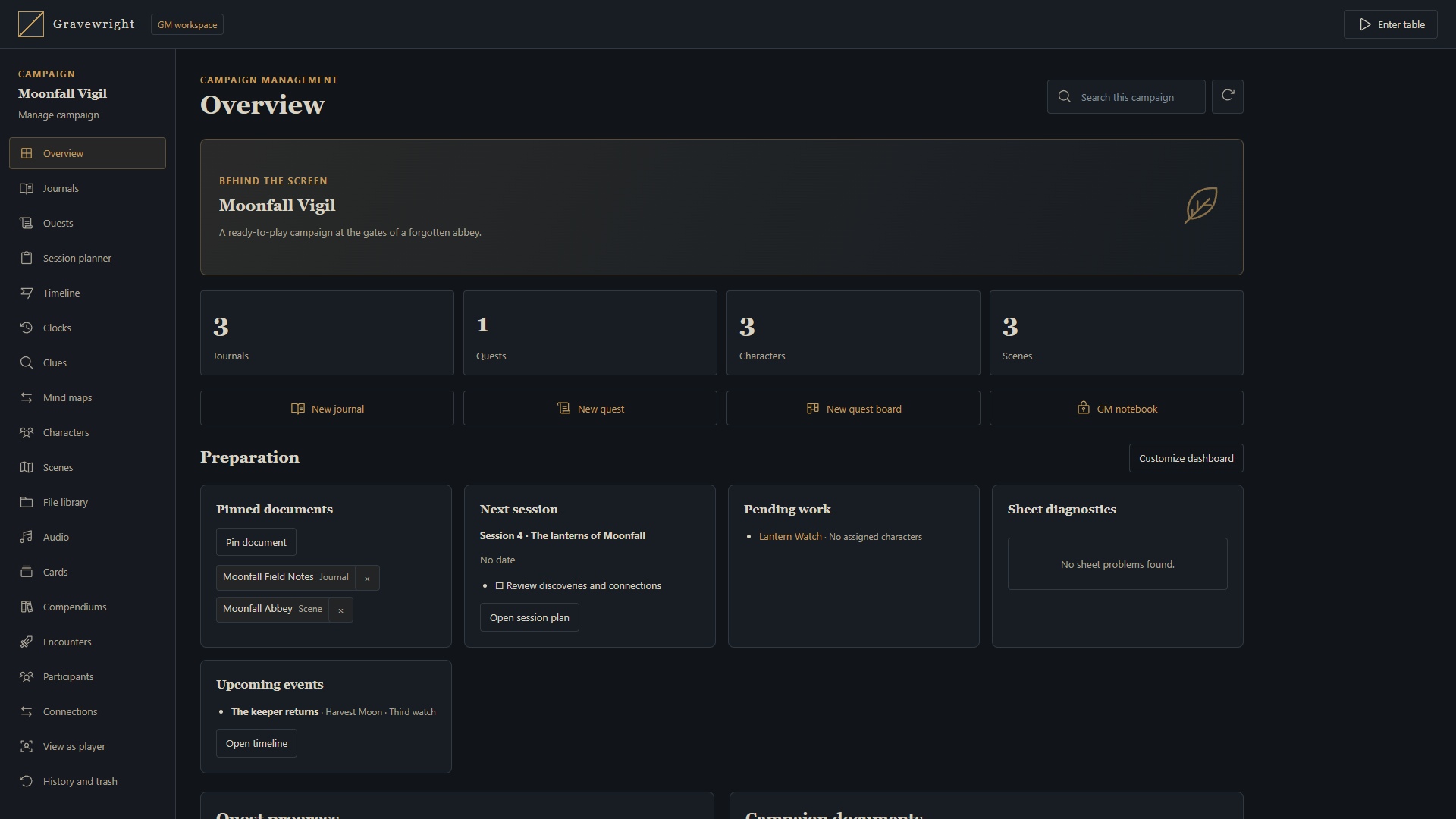
Open the GM workspace
Choose Manage campaign on the campaign card or its cover preview. Every current campaign GM can enter, including a co-GM with a participant account. Being the installation owner alone does not grant management access to a campaign where that account is only a player. Players and streamers use their authorized tabletop tools instead.
The manager and table share the same journals, quests, actors, sheets, items, scenes, library, audio, cards, compendiums, clocks, clues and mind maps. Preparing here creates no table presence and changes no scene broadcast. Scene generation, scene updates and live actions retain their own explicit controls.
Use the seven preparation tools
| Tool | Practical use |
|---|---|
| Personal dashboard | Pin documents and arrange panels for the next session, pending work, diagnostics and events |
| Session planner | Order scenes, encounters, quests, characters, audio and notes; keep a checklist and finish with a summary and pending work |
| Timeline and calendar | Record free-text world dates, optional calendar dates, upcoming events and linked documents |
| Quest columns | Change status, inspect prerequisites and assigned characters, and mark visible objectives complete |
| Connections | Inspect links and usages for characters, items, journals and scenes, including typed journal references |
| View as player | Inspect the server-filtered documents of a selected player in a read-only preview |
| History and trash | Compare journal revisions, restore a version or recover a deleted journal and its retained files |
Each GM has a personal dashboard; session plans and timeline records are shared GM preparation. These records are not delivered to players. The manager refreshes authorized state automatically. A conflict requires reviewing the current version; keep the draft open instead of silently replacing another GM's revision.
Prepare and verify
Select the intended scene context without changing the table's broadcast.
Edit the native sheets and journals, prepare progress and link the session's documents.
Use View as player to inspect the intended audience, then test interactive actions in a separate player session.
Save before leaving the selected editor. Use journal history to compare a change before restoring it.
Enter the table and activate a scene only when the group is ready.
Campaign copies and exports include selected preparation and journal history; snapshots preserve campaign recovery state. Omitted targets do not acquire unrelated resource identities, and missing retained files prevent an incomplete restore. A campaign ZIP does not replace a consistent installation backup. See the campaign reference and backup and upgrade steps.