
Scenes, grids and the player broadcast
Prepare a map privately, choose an import method and put the intended scene on screen.
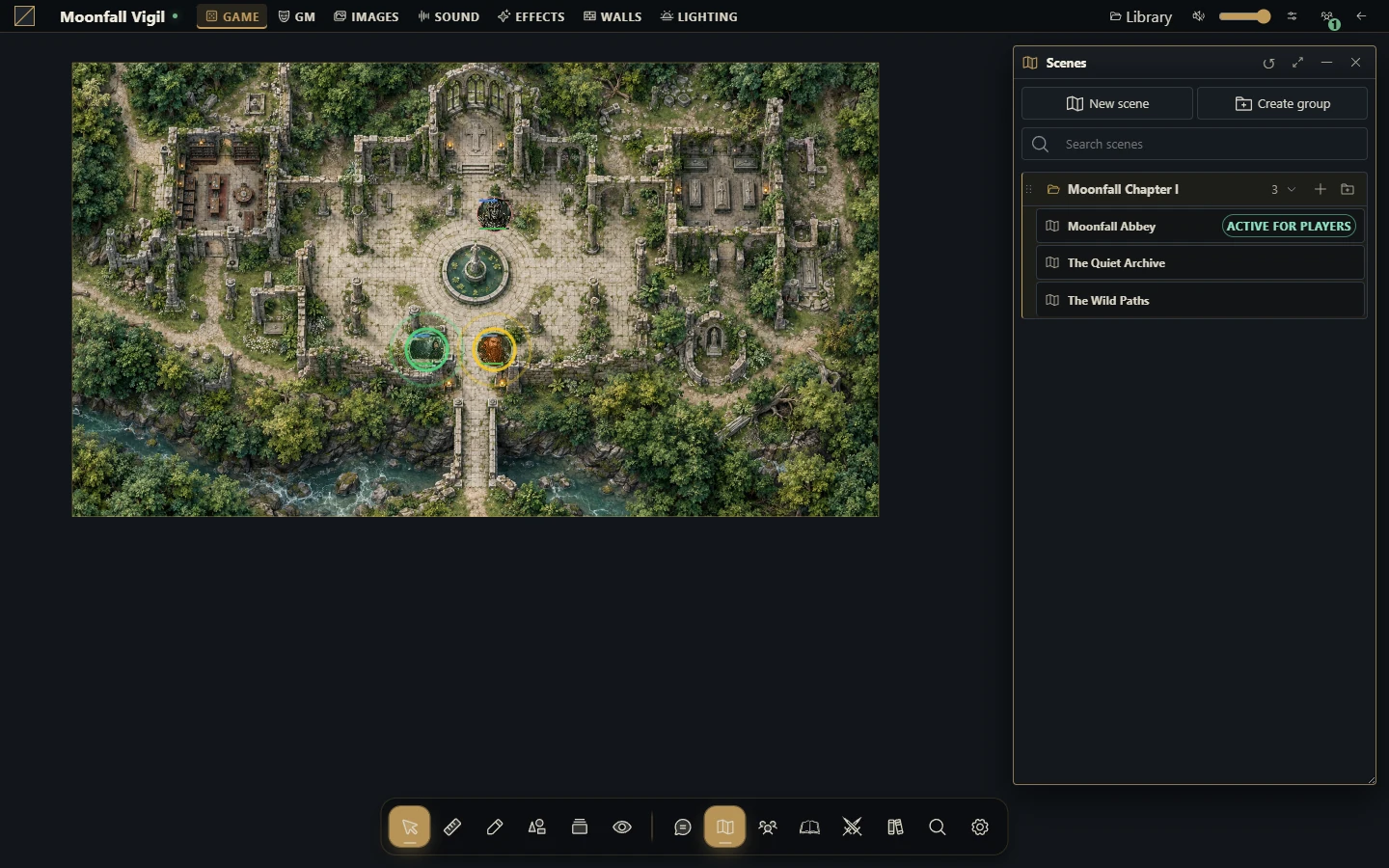
Choose how to create the scene
| Starting material | Use | Result |
|---|---|---|
| A finished map image | New scene → Upload map | A native scene |
| An editable map you want to build | New scene → Map Builder | An editable project, then a generated scene |
| A finished image to decorate in the Builder | Library → Import → Import ready-made map | A project background with editable additions |
| A .uvtt, .dd2vtt or .df2vtt file | Import Universal VTT | A native scene with supported geometry and lighting |
A normal image upload does not discover walls or reconstruct original layers. Universal VTT imports do not create Builder projects.
Prepare and share
As campaign GM, create the scene in the intended folder.
Configure its name, grid and initial view. Match the cell size and image alignment before placing tokens.
Add or inspect walls, doors, fog and lights using the scene tools.
Place a test token and check movement and vision with a player account.
Choose Activate for players when the scene is ready. This makes it visible and broadcasts it in one operation.
Opening a scene privately as GM preserves the players' broadcast. Generating a Builder scene also begins privately; broadcasting remains a separate action. Updating a linked scene changes what clients already viewing that scene receive.
Manage generated scenes carefully
Scenes linked to a Builder project have a red map icon for the GM and an Edit with MapBuilder action. Reopen the project there and use Update scene to apply changes to the same scene. Compatible manual edits to generated resources are imported when opening the project, returning to its tab and before updating. Scene-only objects stay separate. Changes to different properties can merge; competing edits to the same property pause synchronization and preserve your local draft. Follow Builder synchronization and recovery before continuing.
Troubleshoot
If players see the previous map, check the broadcast and the success of scene generation/update. For an upload timeout, inspect the scene directory before uploading again: server processing may have finished after the connection closed. Image byte size, decoded pixels, dimensions and tile counts have separate limits configured by the host. A larger byte allowance does not guarantee that a huge image can be rendered.