Smart Objects: models, nodes and safe playtests
Start with an interactive model, customize its logic and test behavior before applying it to the game.
Start with an event
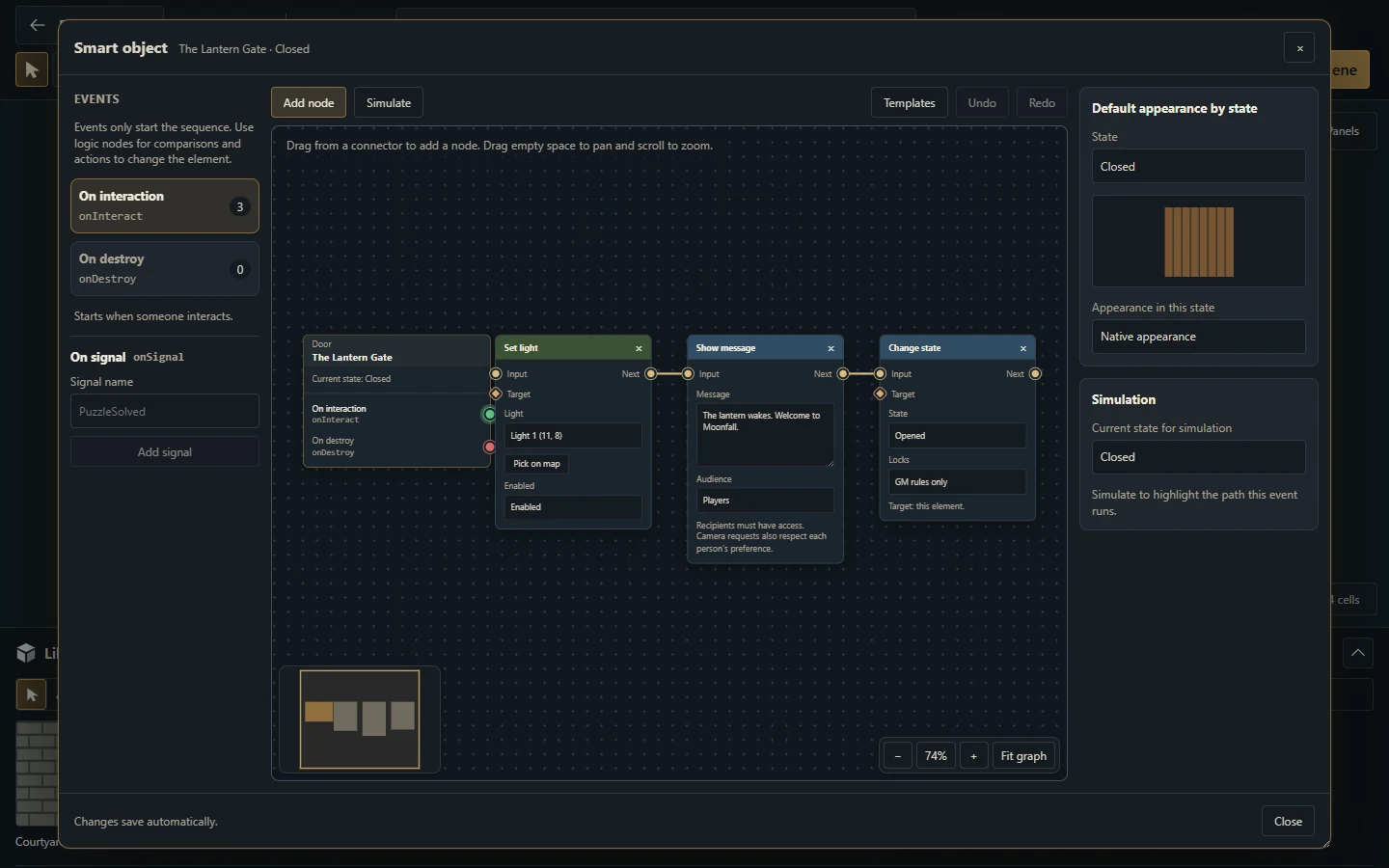
Doors, objects, levers, torches, Empty Objects and presence regions share a visual blueprint editor. Double-click an editable element in Map Builder to open Smart Object. Select a starting event, connect its output to a node and configure explicit actions. An empty authored interaction graph does nothing: no implicit toggle is added.
Doors offer On interact and On destroy. Objects also support On area enter/exit; regions offer area entry/exit and destruction. Named signals provide On signal. An event starts execution; it does not compare a state or choose an image by itself. Legacy state-specific interaction/entry/exit graphs and change events are discarded rather than migrated; recreate their behavior with current events and logic nodes.
Choose one of the 14 ready-made models
Select an Object or Empty Object and open Object options → Ready-made models, choose a model in Behavior, or open Object catalog in the node editor. These entry points share the same editable catalog.
| Model | Starting behavior |
|---|---|
| Interactive switch | Toggle the object and optionally a linked door |
| Chest | Open/close and show a message on its first opening |
| Secret passage | Toggle a required linked door |
| Readable book | Open an authorized journal handout for chosen recipients |
| Altar | Show a message with a five-second cooldown |
| Warning trap | Warn on token entry while armed; interact to arm/disarm |
| Bell | Notify chosen recipients with a short cooldown |
| Pressure plate | Open a linked door on entry; close when the last token leaves |
| Dice challenge | Ask selected recipients to roll explicitly |
| Quest giver | Set a bound quest active and open its journal entry |
| Quest completion | Set a bound quest completed and open its journal entry |
| Entrance sign | Show a message on first entry; interact to read it again |
| Timed switch | Activate, optionally open a door, then reset after a delay |
| Door button | Open a linked door when pressed |
Search the catalog, choose the model and supply its required door, journal/quest, recipients, message, expression or delay. Add a sound when activated enables a campaign sound and volume; Use an active image enables another Object image for the active state. Leaving either unchecked adds no corresponding override. The inactive state keeps the original image, and Empty Objects remain image-free.
Choose Apply, inspect the generated nodes and customize them as needed. Applying preserves the object's identity and geometry as one Undo step; closing the catalog without applying leaves it unchanged. Replacing existing authored nodes requires confirmation. The warning trap reports a warning: damage, RPG checks, item consumption and system-specific rewards belong to the RPG system package, not these generic models.
Build a door toggle
Select On interact and connect Check state, configured to compare Closed.
Connect True → Change state: Opened.
Connect False → Change state: Closed.
Add Control light, Play sound or Change image after the appropriate action when desired.
Bind another target using a typed Element reference, Light reference or compatible group. Without a target connection, element actions normally address the edited element.
Simulate both initial states, then run a server playtest before updating the scene.
Value nodes supply typed data; they do not execute a chain by themselves. Compare state/value, All conditions and Any condition can feed the Boolean Test input of a decision. Sequence runs its branches in order; Choose path selects a typed case; Random selects a weighted branch.
Remember a puzzle with variables and signals
Use Get variable/Set variable with a case-sensitive name, scope This element or Scene, and type Boolean, Number or Text. For example, set scene Boolean PuzzleSolved to True, then emit the named signal PuzzleSolved. A receiving On signal graph reads that variable and opens its passage.
Each event reads an initial state/variable snapshot. A later read inside that same event still sees the initial value; the next queued receiving event sees the assignment. A signal alone does not open a door, carries no custom payload and remains inside the scene. Configure the receiver's action explicitly. GM Automation → Variables inspects memory; resetting a variable removes that entry without running a graph.
Area events run for eligible token crossings. A token crossing the entire area can cause entry and exit in one accepted move. Use event context and conditions when you want only the first arrival or last departure to matter. Interact with object explicitly runs a target's interaction behavior; Change state alone does not run another graph or its image/sound actions.
Request a roll or advance a quest
For Request dice roll, choose the native expression, optional label, recipients and result visibility. The server checks membership and scene access before delivering each request. The recipient must press Roll; streamers cannot receive an actionable prompt. Retrying or opening another tab reuses the recipient's logical roll. The graph continues without waiting for a result. See Chat and dice for native notation.
For Open journal, bind a campaign journal, quest or board and choose recipients who already have access. Opening it does not grant permission to read it. Set quest status binds one fixed campaign quest and desired status authored by the GM. A player can trigger that configured change through the object without gaining general journal editing rights. Check the quest's own visibility and permissions separately; see Journals and quests.
Use time deliberately
Delay persists a continuation; Timer is a named one-shot countdown whose expiry runs the matching named signal. They survive closed browsers/server restarts, and pausing scene automation keeps pending jobs waiting. GM Automation → Waiting shows the queue. Behavior changes, removed targets or lost access can cancel pending work. Exports, campaign snapshots and copies omit these jobs; a full database backup includes them.
Simulate, playtest and publish
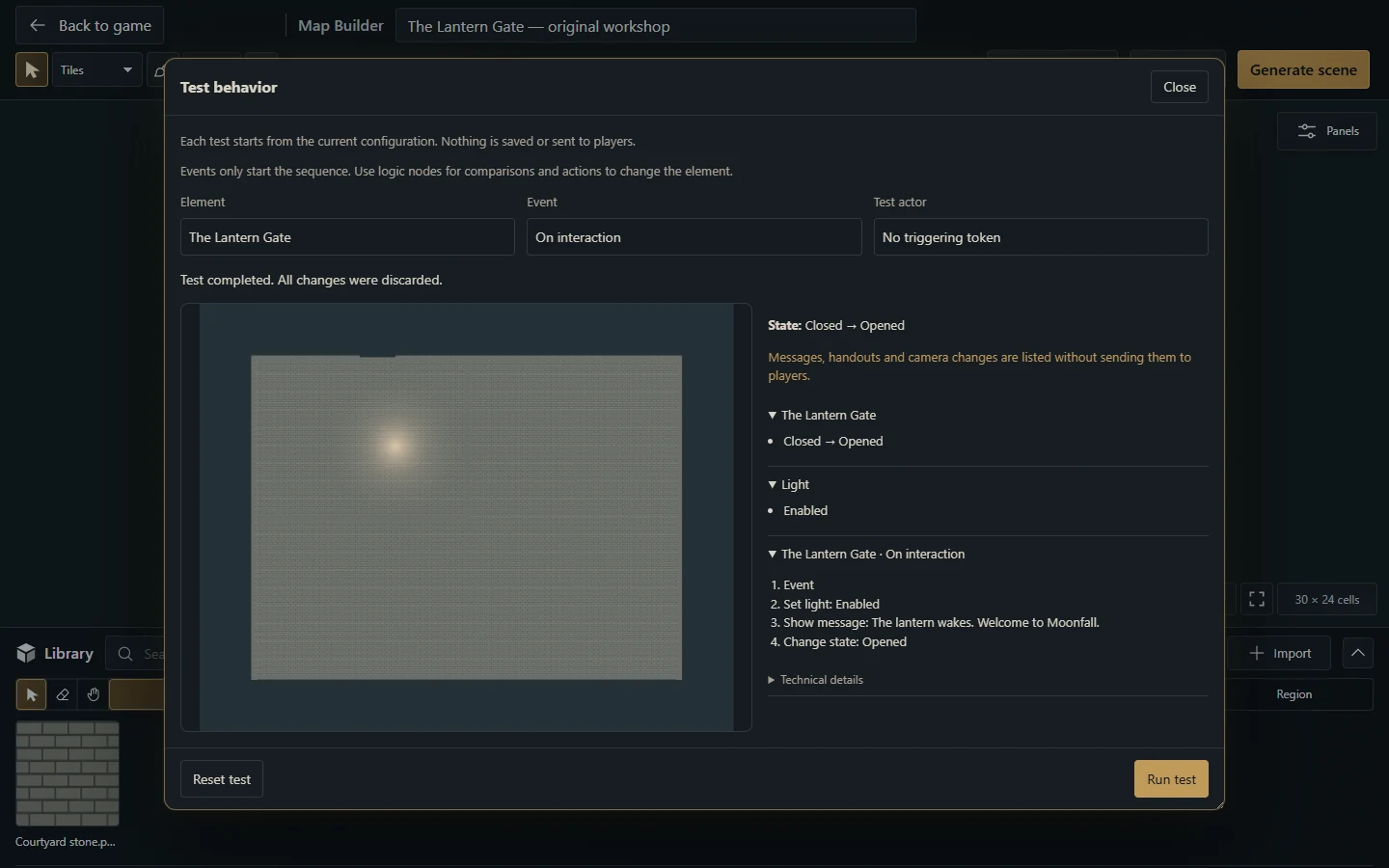
Simulate is a local graph preview. Test behavior runs the server engine against the unsaved Builder document or a live element, showing predicted state, variable and cross-element changes. Choose an optional test actor/token for token-dependent actions. Tests use GM permissions, so also test a real player separately.
Tests roll everything back and deliver no live sounds, messages, handouts, roll prompts or camera changes. Quest changes and roll requests appear in the report without saving quest state or opening recipient windows. Delay stops at the wait; Timer scheduling is listed without advancing time or firing receivers. Verify actual timing in a controlled live scene. After successful editing, wait for autosave and choose Generate scene/Update scene; returning to the table alone does not apply project graphs.
Limits and troubleshooting
Each event graph allows 32 nodes and 64 connections; a door's graphs allow 128 nodes combined. A scope stores up to 64 variables. Delay/Timer share 64 pending jobs per scene and 256 per campaign. Cycles, invalid typed connections and oversized chains are rejected.
If nothing happens, check the starting event, connected actions, targets, pause state and Automation log. A player-triggered chain cannot lock/unlock by default; the GM must explicitly allow player locking/unlocking on that state action. A missing target can be skipped with a diagnostic. Teleport is within the same scene; these tools do not promise cross-scene or group transport.
More screenshots for this guide (1)