Tokens, movement and vision
Control a character on the map and understand linked data, collision and visibility.
Place and configure
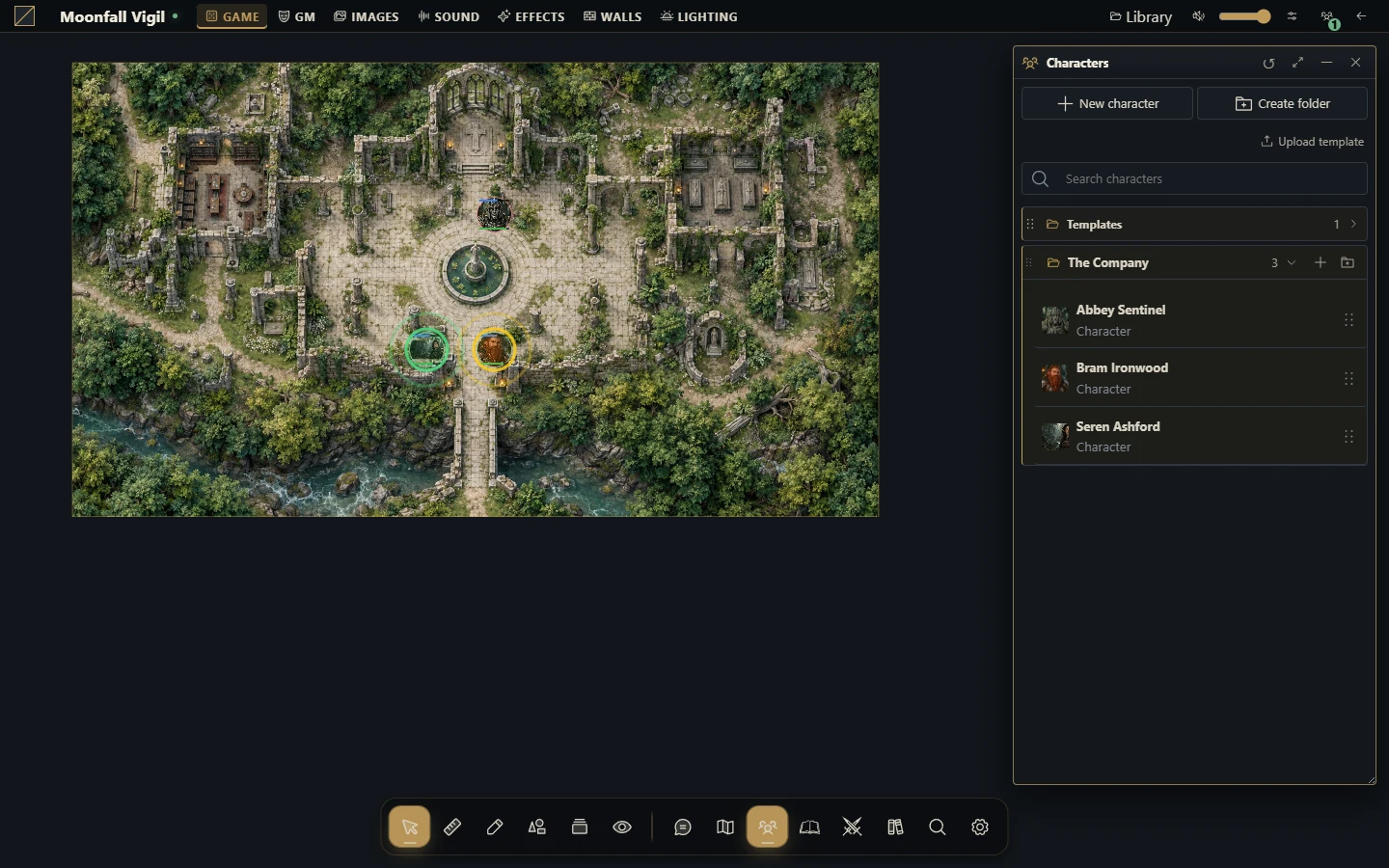
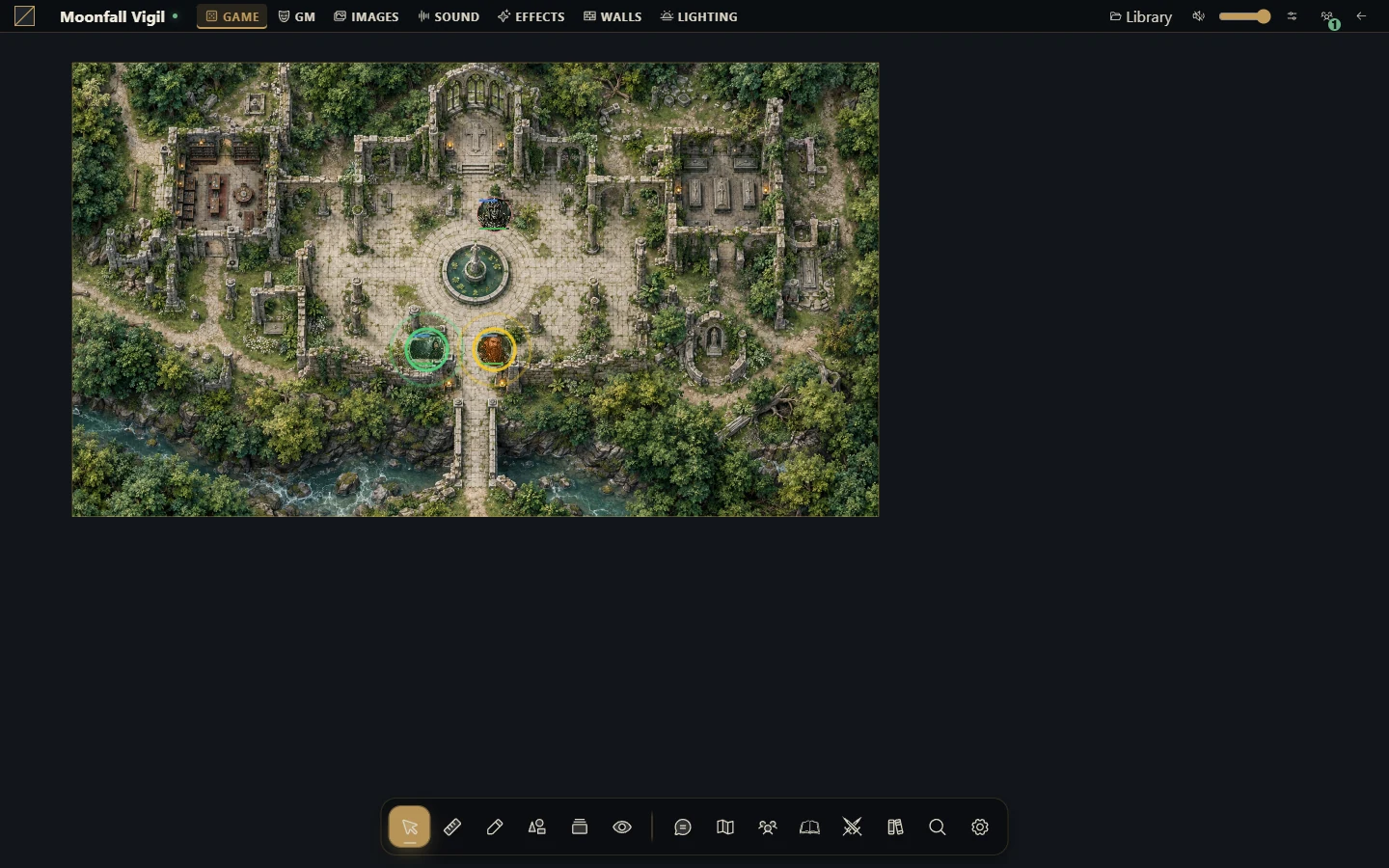
As GM, open the intended scene and place a token based on an actor.
Check its image, size, name and whether it reads linked actor data or an independent snapshot.
Configure visibility, lock and vision settings for the role it will play.
Give the player the appropriate actor ownership and test selection and movement in their session.
Check walls, doors and lighting from that player's view before starting play.
Move during play
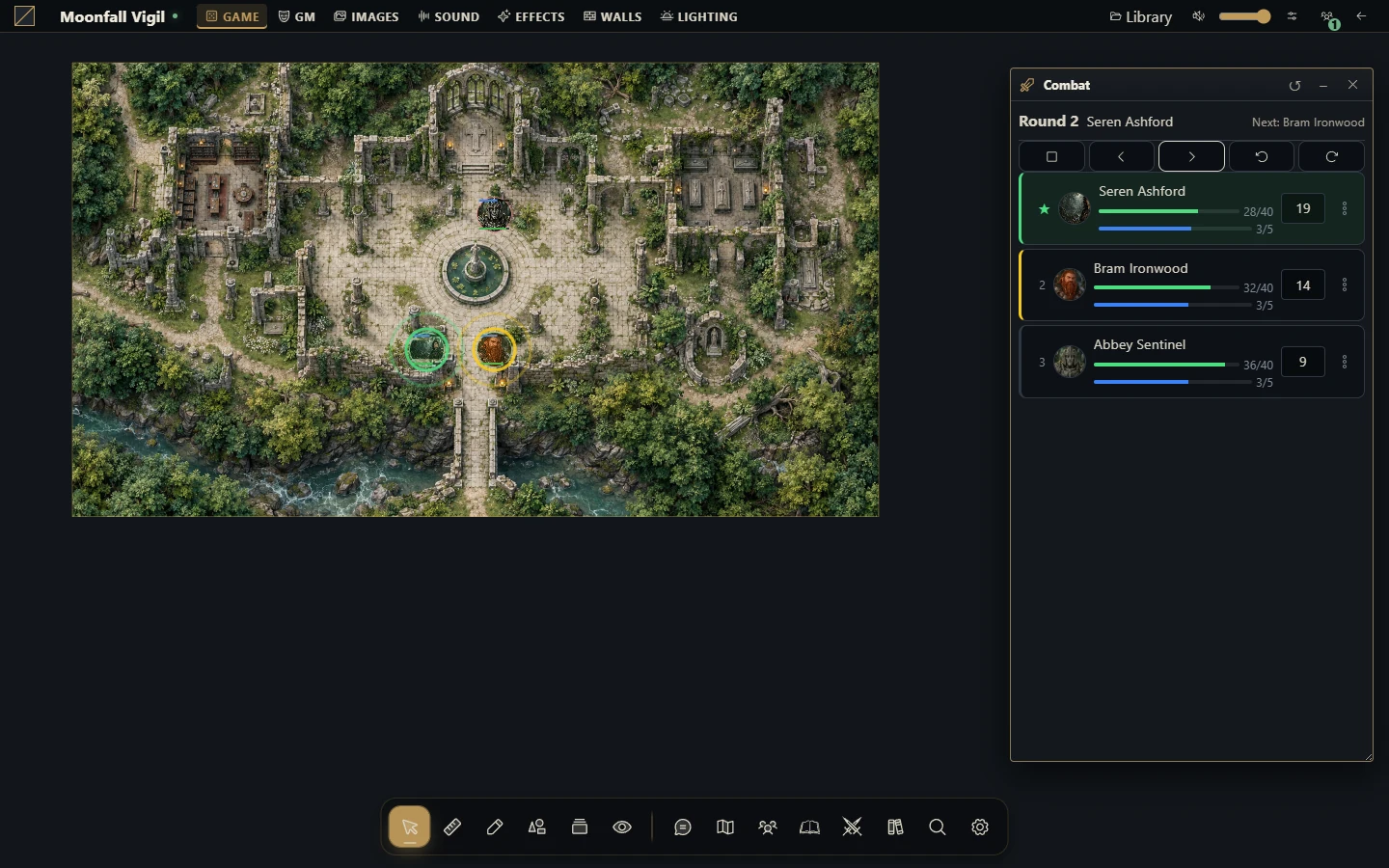
Use the selection/movement tool and a token you control. The server verifies permissions, the current revision, scene bounds and wall collision. A token can be visible without being controlled. A controlled token can still be locked or blocked by a wall.
Pings and measurement help communicate intended movement, but do not bypass these restrictions. The vision available to the player depends on eligible controlled tokens and scene configuration; the GM's view is not an accurate substitute for a player test.
Understand linked and snapshot data
A linked token's sheet source is the actor. An independent token's source is its snapshot. Check this when multiple creatures use the same actor and when a resource change appears on one creature but not another. Position, scene state and sheet data do not all have the same source.
Diagnose movement and vision
| Symptom | Check |
|---|---|
| Cannot select or move | Active tool, control permissions and token lock |
| Movement stops | Walls, closed doors, scene bounds and a refreshed token revision |
| Player sees an empty/dark area | Broadcast scene, token visibility, vision enabled/range and lighting |
| A character has unexpected values | Linked versus snapshot sheet source |
| Automation fires while crossing an object | Its area-entry/exit blueprint and token path |
Movement through a Smart Object area can trigger both entry and exit when a path crosses the entire area. Configuration changes are different from accepted movement events. Use the GM automation log to investigate rather than disabling ownership or wall checks.
More screenshots for this guide (2)